Transcription
Global Transcription
Document Metadata
Category: Features / Call Transcription
Audience: Administrators, Engineers, Analytics & Compliance Teams
Difficulty: Intermediate
Prerequisites:
- Active ConnexCS account with transcription enabled — this is a paid feature; check Pricing before setup.
- Basic understanding of keyword/phrase matching and boolean logic (AND, OR, NOT).
Next Steps: After enabling transcription, build a Query Profile to define keyword detection rules, then configure Alerts to trigger automated responses when phrases are detected.
Need Help?: If the Enable Transcription option is not visible in your account, or if you require transcription in a language other than English, contact ConnexCS support.
Meta Description: Configure call transcription in ConnexCS to detect fraud, monitor compliance, and review agent quality using keyword search, query profiles, and automated alerts.
Introduction
A transcription service translates voice communication, whether live or recorded, into text. If you have a recorded call, you may use this service to have it transcribed in English.
English by default; additional languages available on request.
Depending on the needs of customers, you can define individual prices. You can also select the quantity you want to offer your customer.
Operational Use Cases
Transcription and query analysis can help operators monitor conversations, identify operational risks, and improve customer interaction visibility.
Common use cases include:
-
Fraud Monitoring:
Query profiles can help identify suspicious phrases, high-risk keywords, or unusual conversation patterns associated with fraudulent activity or social engineering attempts.
-
Compliance Review:
Operators can monitor calls for regulatory or policy-related keywords to support internal compliance processes and operational audits.
-
Customer Experience Monitoring:
Conversation analysis can help identify recurring customer concerns, service quality issues, or negative interaction patterns that may require operational review.
-
Keyword Detection:
Query profiles can automatically detect configured keywords or phrases within call transcripts to help surface relevant conversations for further review.
-
Dispute Investigation:
Searchable transcripts can help operators review historical conversations during customer disputes, escalations, or operational investigations.
Query Profiles
Query Profiles allow operators to define reusable keyword and phrase matching rules for transcript analysis.
Profiles can be configured globally or assigned to specific customers based on operational requirements.
AND / OR / NOT Logic
Query profiles support logical operators for flexible matching behavior.
AND Example
refund AND cancellation
Matches transcripts containing both:
- “refund”
- “cancellation”
OR Example
fraud OR scam
Matches transcripts containing either:
- “fraud”
- “scam”
NOT Example
refund NOT approved
Matches transcripts containing:
- “refund”
but excluding transcripts containing:
- “approved”
Phrase Matching
Phrase matching helps identify exact conversation patterns.
Example:
"cancel my account"
Matches the complete phrase rather than individual keywords separately.
Reusable Profiles
Query profiles can be reused across multiple customers, routes, or operational workflows.
This helps standardize:
- compliance monitoring
- QA workflows
- keyword detection
- operational review processes
Global vs Customer Profiles
Global Profiles
Global profiles apply across multiple customers or environments and are useful for organization-wide monitoring policies.
Customer Profiles
Customer-specific profiles allow operators to create customized monitoring rules for individual customer requirements or workflows.
Transcription Setup
Enable Transcription
To enable the Transcription feature on your account, navigate to Setup Settings Account and click the Enable Transcription button.

Pricing
Check Pricing here.
Warning
If you are unable to find the Enable Transcription option, please contact us for assistance in enabling the transcription service.
Info
Please take note that there is no fee for silence.
It implies that if a call lasts for 50 seconds and no audio is exchanged for 20 seconds, we will make every effort to cut out the silence from the audio and bill you for 30 seconds of transcribing service.
Add Transcription Service for your Customer
Once this service has been enabled on your account, you can follow the steps below to enable this for your customers:
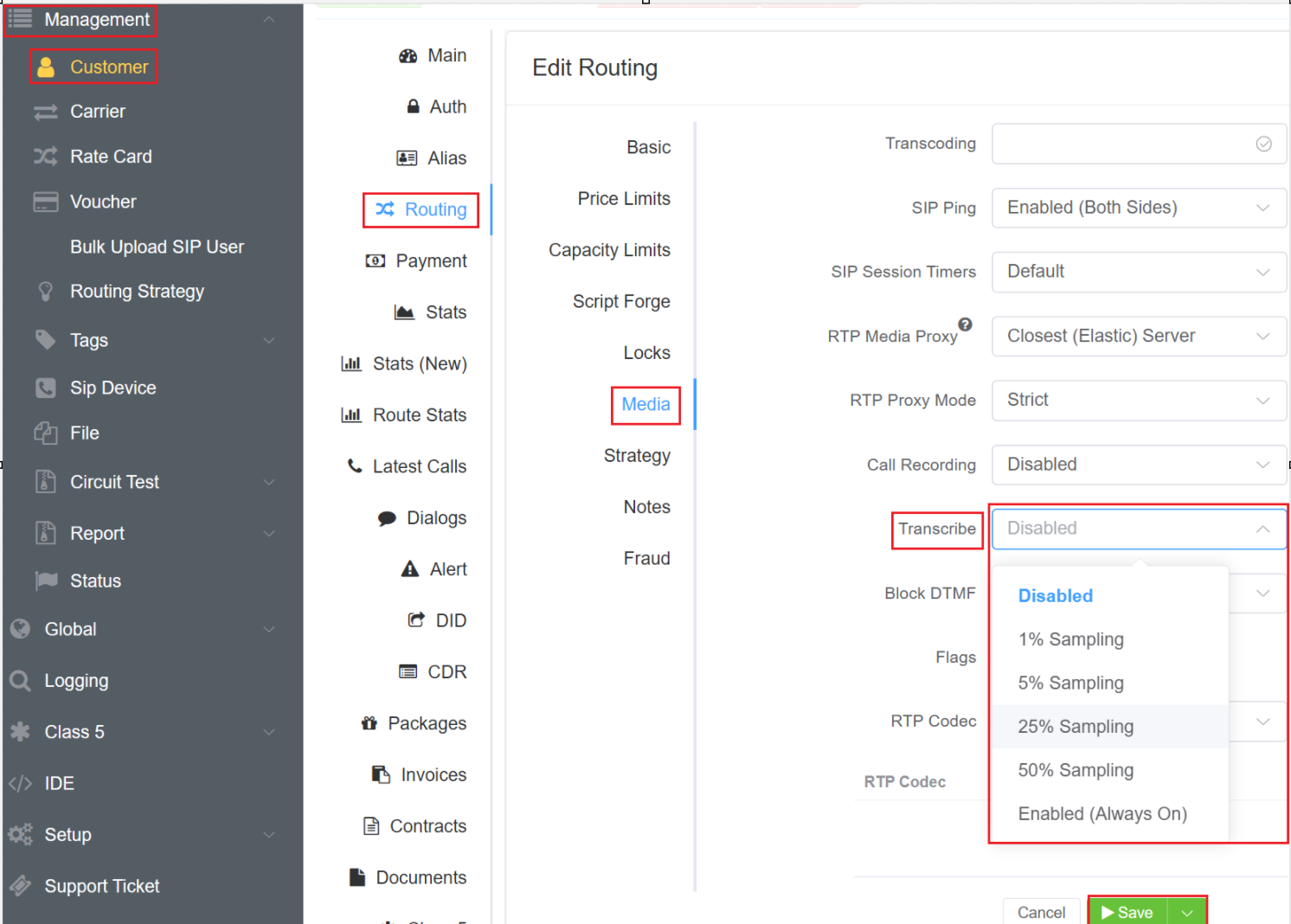
- Navigate to Management Customer [Customer Name] Routing Ingress Routing Media Transcribe.
- From the drop-down you can select from multiple options like Disabled, 1% Sampling, 5% Sampling, 25% Sampling, 50% Sampling and Enabled (Always On).
Info
Out of all the calls that are accessible, % Sampling indicates the proportion of calls that will be transcribed.
3.Transcription Duration: You can set a maximum transcription time (in seconds) for your transcription service per call. Please note, the transcription will stop at the specified time, even if it is mid-sentence.
Confirm your Transcription Service Status
- Navigate to Global Transcription. You will be able to see the screen as shown below.
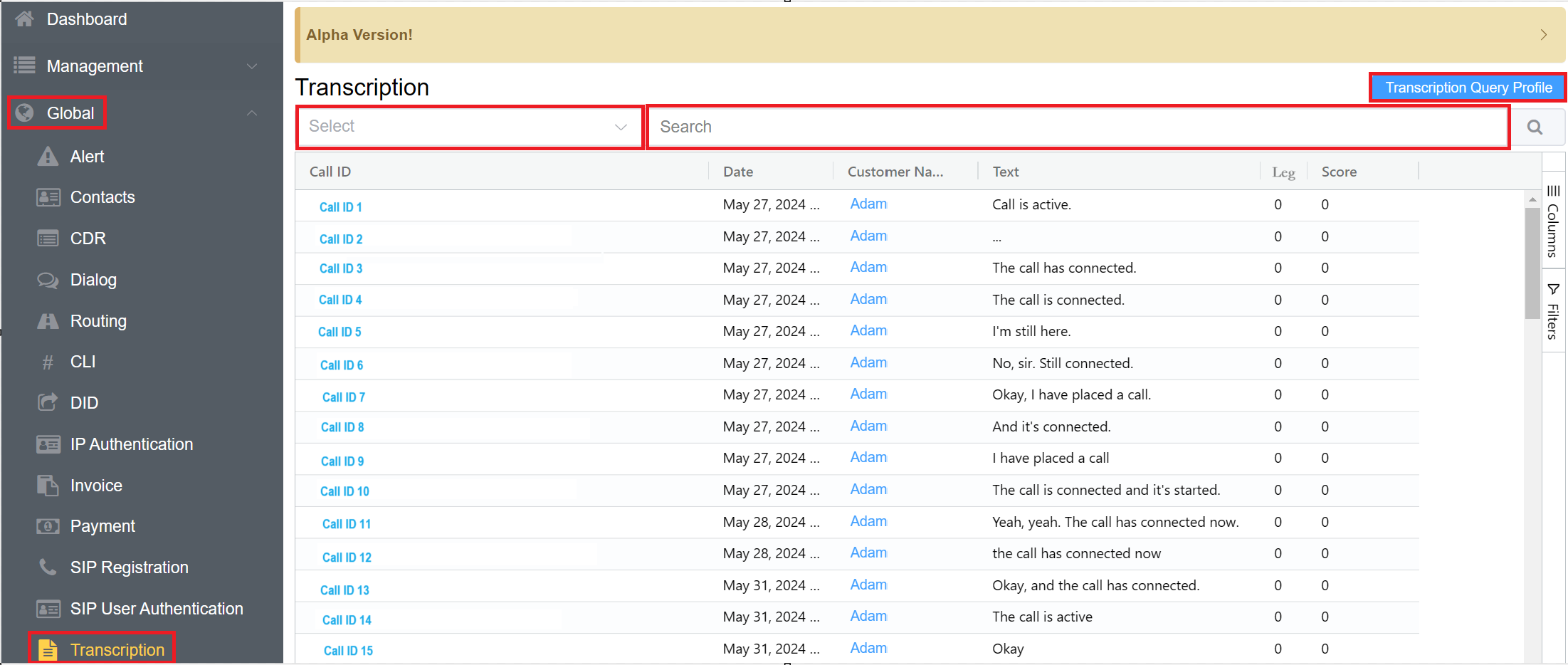
2.You will see 3 options:
- Select: You can select a particular query profile built using the Transcription Query Profile.
- Search: Allows you to search things like the Call ID, Phrases etc. Click here to know more.
- Transcription Query Profile.
3.Description of Transcription fields:
- Call ID: Particular Call ID.
- Date: Date of the call.
- Customer Name: Name of the customer whose transcription is displayed.
- Text: Sentences of the transcribed call.
- Leg: Assigns
0value to caller,1to the callee. - Score: While searching for the relevance of a document, the system rates it and assigns a score; this helps return the documents that best match the search criteria.
Transcription Query Profile
A Transcription Query Profile defines how the system should respond when a specific word or phrase is detected in a transcript.
To create the query list, please follow the steps below:
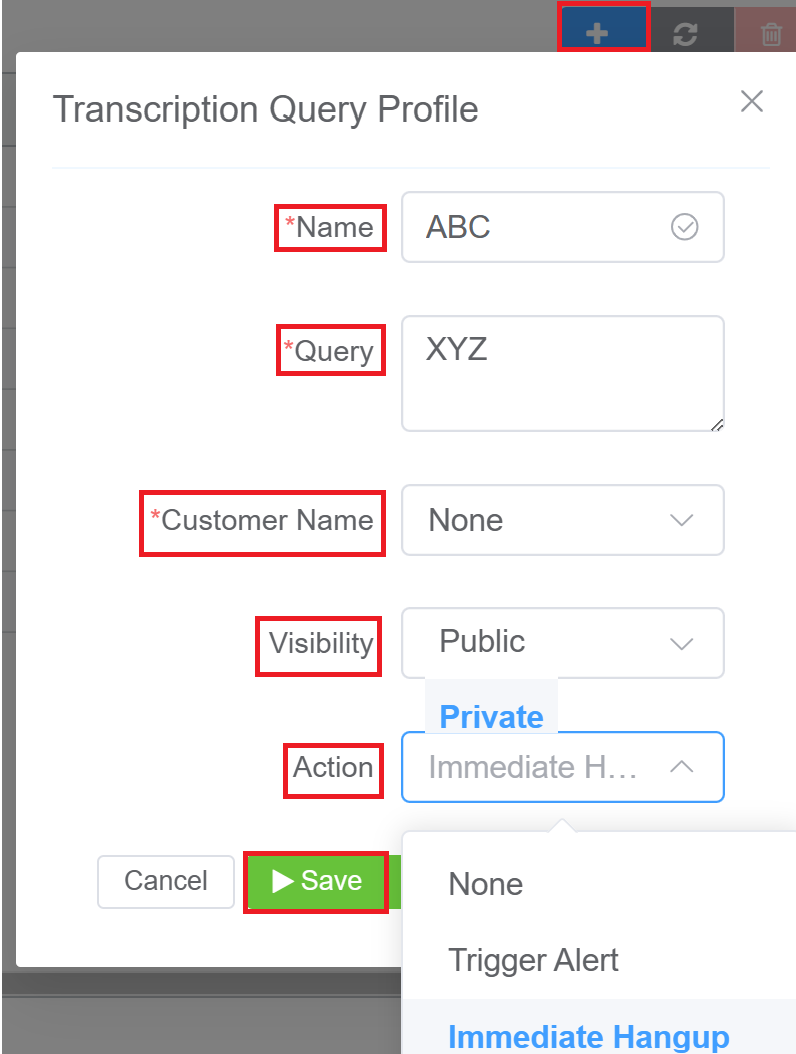
- Click on the
Transcription Query Profilebutton followed by the blue+icon. - Enter the Name of your query list.
- Write your query in the Query tab, for example "I am calling from the UFO".
- Select the customer for whom you want to apply this particular query from the Customer Name drop-down.
-
Form the Visibility drop-down you can either select Public or Private. Its a privacy setting that allows you to decide if you want your customers to be able to see (and use) the query that you have saved. Public will allow your customers to see this; Private will keep it hidden from them.
For example, you can choose Customer Name : None and Visibility as Public if you want every one of your customers to see the list.
-
Action: Allows you to either Trigger Alert when the phrase is detected or Hangup the call if that particular phrase is detected in the call.
-
Click
Save.
Transcription Alerts
You can navigate to a specific customer's account and add a Saved Query as an alert.
You will either receive a call, text, or e-mail saying that the system has detected a particular word or phrase for a specific call.
Please follow the below steps to add the Alerts:
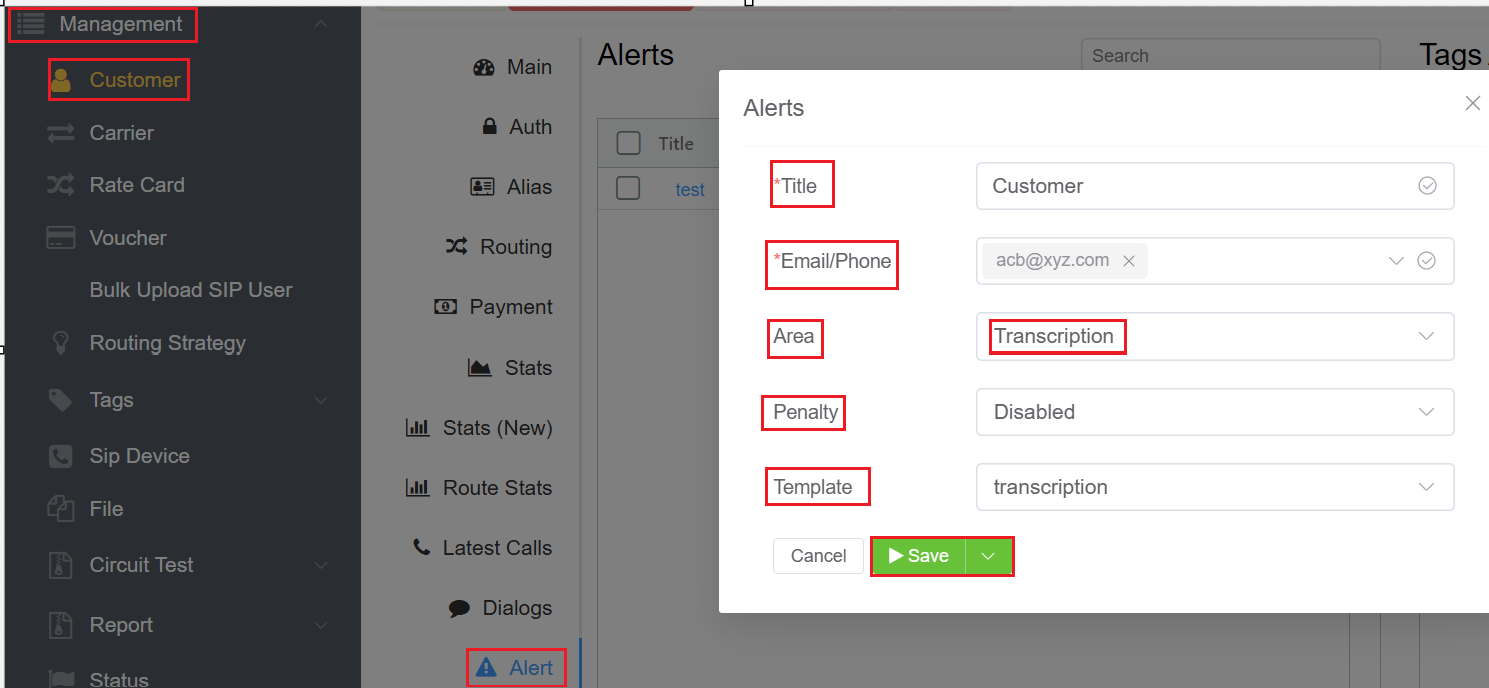
- Navigate to Management Customer [Customer Name] Alert.
- Enter the Title of the alert.
- Enter the E-mail/Phone Number you wish to receive the alert message.
- Select the Area as Transcription. For example, this alert can be used to inform Customer1 that their account has been disabled.
- You can also select the Penalty as soon as the alert triggers. This option will disable the customer's account for 1 minute, 5 minutes, 15 minutes, 1 Hour, 1 Day, 1 Year or just use the Disabled option for not using the penalty option.
- You can also select the Template from the drop-down.
Create a Transcription Package
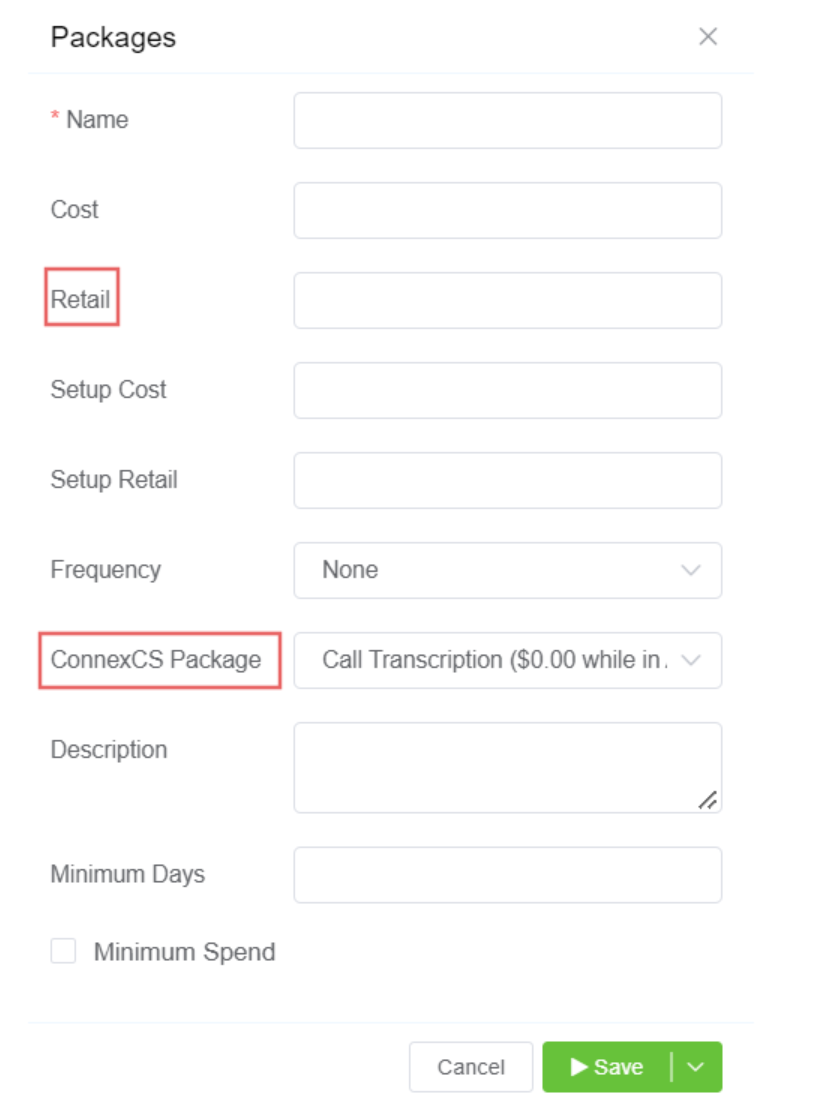
To create a package to resell to your customers, go to Config Packages. Click on  and choose your Transcription Package from ConnexCS Package.
Select your Retail Cost and click on  and choose your Transcription Package from ConnexCS Package.
Search Transcriptions
Once the system performs the call transcription process, it's kept into a full-text search engine, available only to you and, (in the future) your customer.
To search for transcriptions, we will be sending a query to the server, which, based on your search criteria, will return results with a score.
Search Modifiers
Search modifications allow you to describe what you want to find. Specific syntax is available to help you with this.
Lemmatization
Our built-in search engine offers Lemmatization.
Lemmatization is the grouping together of different forms of the same word. It enables end users to use any variation of a base word in search queries.
It helps in receiving appropriate results.
For example,
- Runs, running, and ran are all forms of the word run
- Builds, building, or built are all forms of the word build.
Ad-hoc Queries
To view all existing transcriptions, you can enter * and choose the required date range.
Saved Queries
Saved queries allow you to build a query that you can reuse.
The Transcription Query Profile enables you to construct a query list and save it.
You can search the created query list for the transcribed calls.
Boolean Search
You can use various Operators to refine your research:
| Operator | Explanation | Example |
|---|---|---|
AND |
Includes entries that contain all the keywords provided in a list, separated by AND/&/and |
1. call AND connect AND echo2. call and connect and echo3. call & connect & echo |
OR |
Include entries that contain at least one keyword from the provided list, separated by OR/or |
1. call or connect or echo 2. call OR connect OR echo |
NOT |
This is the NOT operator it won't include the keywords prefixed by- symbol |
-call -connect -echo |
Example
-
ANDOperator
-
OROperator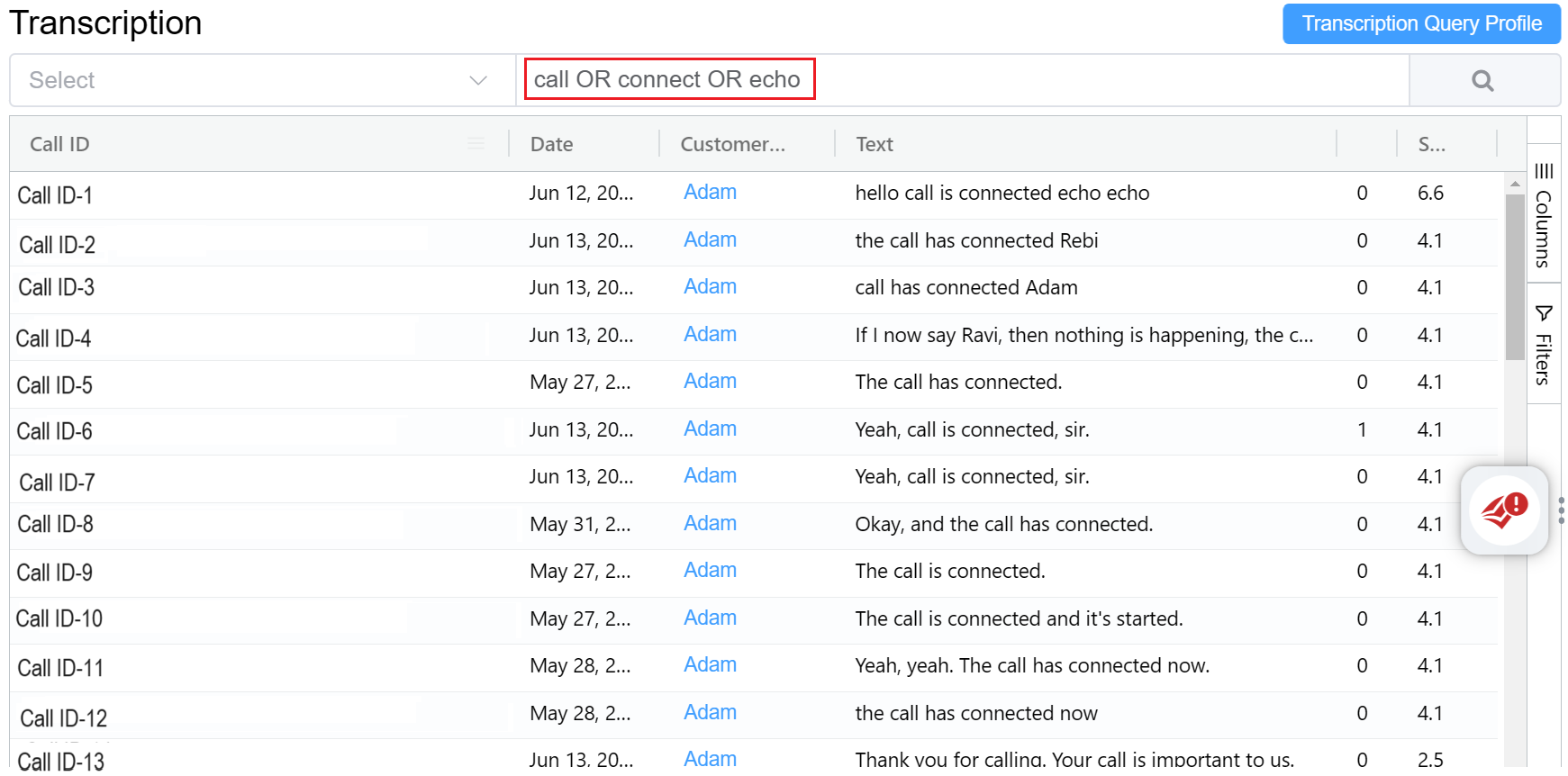
-
NOTOperator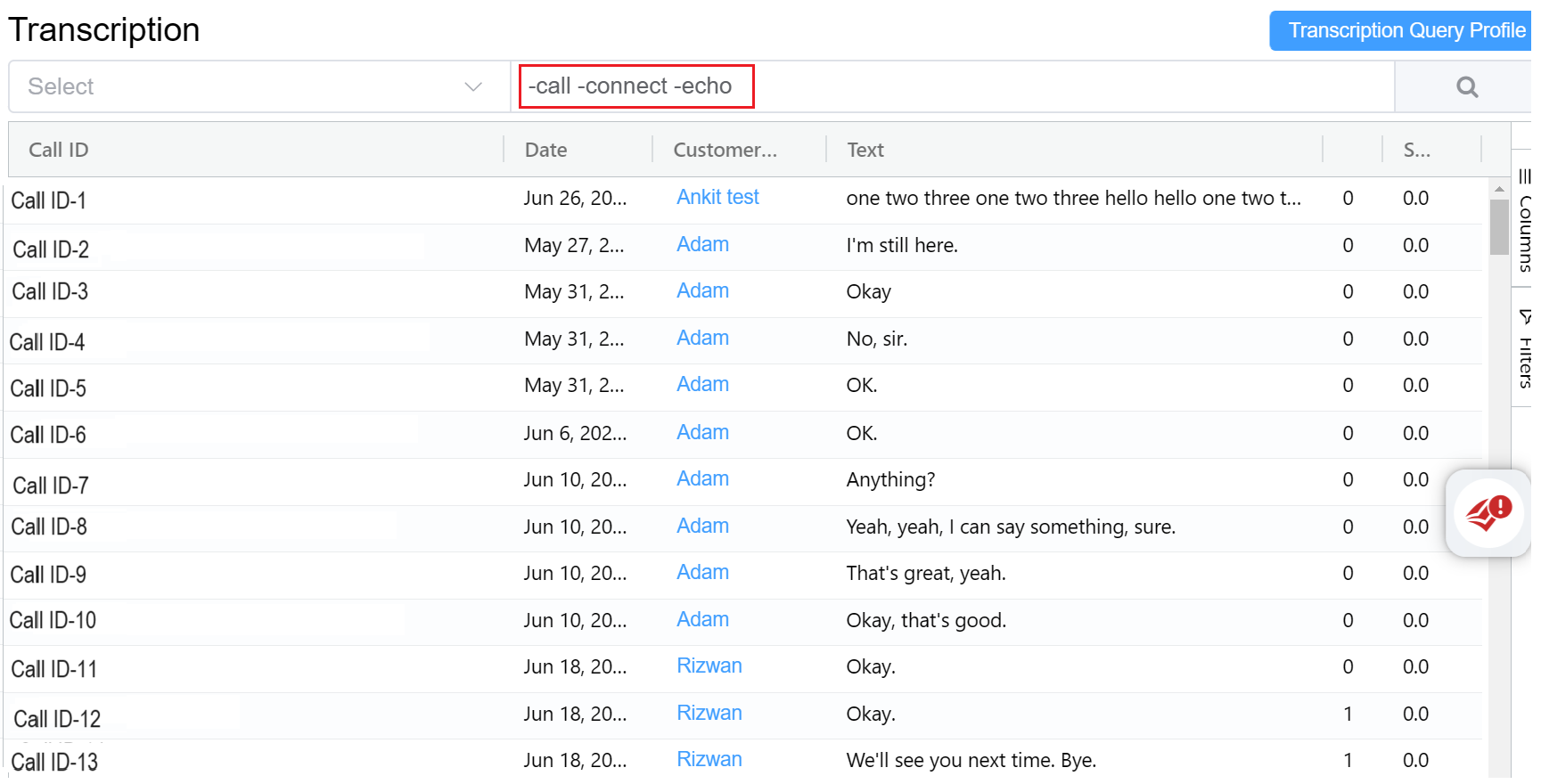
Tip
By using multiple search operators together, you can create more specific search queries that help you find the most relevant entries more quickly.
Search & Investigation Workflows
Transcripts and query matches can be used to support operational investigations and conversation review workflows.
Search by Keyword
Operators can search transcripts using keywords or phrases to quickly locate relevant conversations.
Filter by Customer or Date
Filtering options help narrow investigation scope using:
- customer
- date range
- call direction
- query profile
- matched keywords
Review Flagged Conversations
Calls matching configured query profiles can be reviewed for:
- compliance checks
- operational analysis
- escalation handling
- QA review
Investigate Customer Disputes
Transcript searches can help operators review historical conversations during billing disputes, escalations, or service investigations.
Operational Best Practices
Optimize Queries for Accuracy
Use targeted keywords and phrases to improve match relevance and reduce unnecessary results.
Avoid Overly Broad Keywords
Very common words may generate excessive matches and reduce operational visibility.
Review False Positives Periodically
Regularly review query results to refine keyword logic and improve detection accuracy.
Use Structured Naming Conventions
Use clear naming conventions for query profiles to simplify operational management and reporting.
Regularly Validate Query Effectiveness
Periodically test query profiles against real transcript data to ensure expected detection behavior.