App Store
Document Metadata
Category: Setup / Application Store & App Deployment
Audience: Administrators, Engineers, Product Team
Difficulty: Intermediate
Time Required: Approximately 30–60 minutes
Prerequisites: Active ConnexCS account with Setup privileges; basic understanding of the Apps platform and deployment process.
Related Topics: Anvil Apps
Next Steps: Install the required app from
Setup → App Store, complete its basic configuration, and then verify it works correctly in your environment.Setup App Store
Overview
The Anvil App Store is the central marketplace for discovering, installing, publishing, and managing applications built for the ConnexCS platform.
It enables developers to distribute custom applications while allowing administrators to quickly deploy and manage functionality across their environments.
The App Store serves as a package registry where applications can be published, versioned, updated, and shared either privately or publicly. It is designed to simplify application lifecycle management within the ConnexCS ecosystem.
Accessing the App Store
- Login to your account.
-
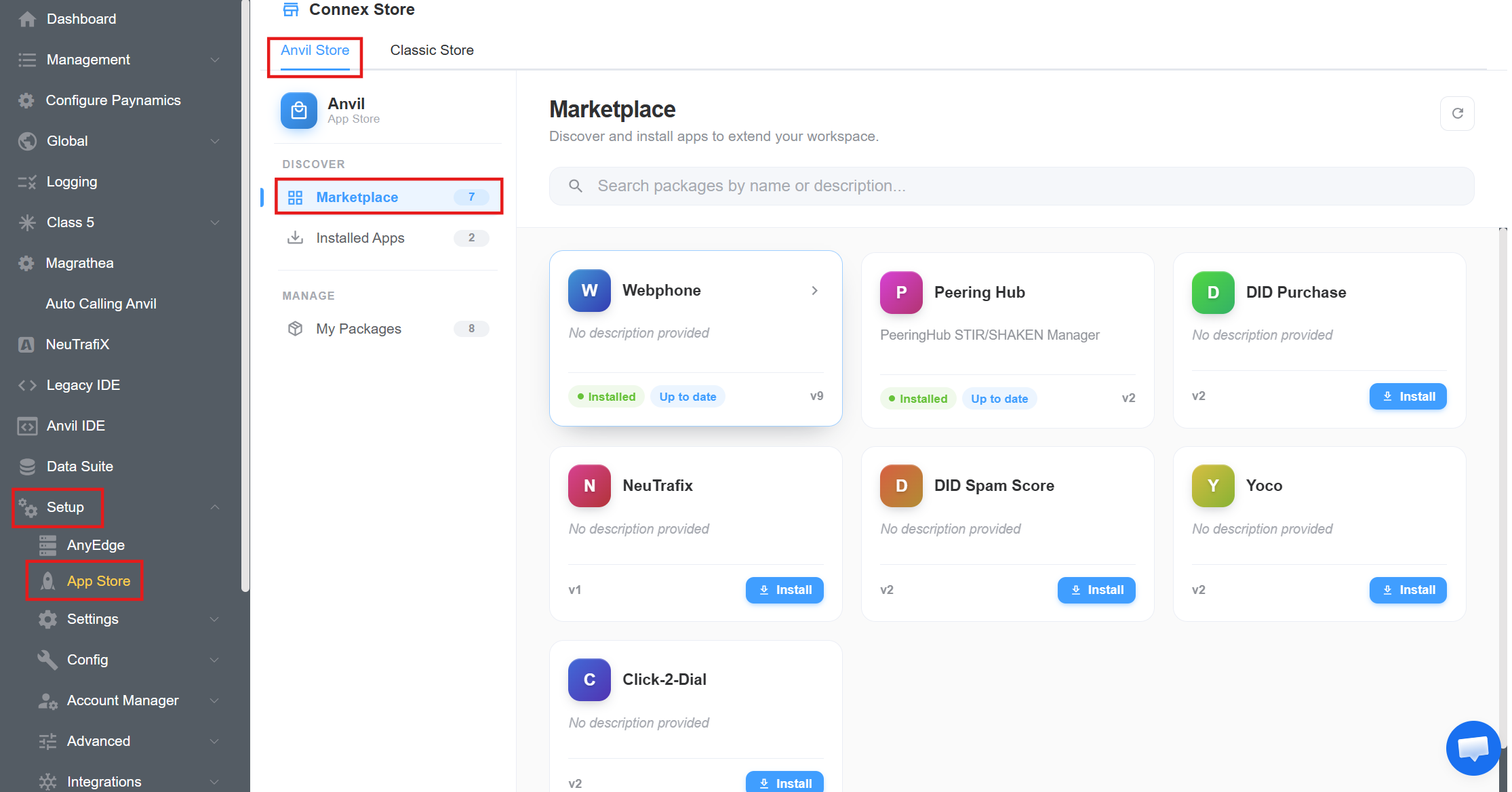
Navigate to Setup App Store.
-
This opens the Connex Store, where you can browse available applications and manage your own packages.
-
App Store Sections:
- Anvil Store: It's the modern application marketplace for Anvil-based applications. It provides access to Marketplace applications, Installed applications, and Your published packages.
Note: The Classic Store is maintained for legacy applications and backward compatibility.
Navigation
The App Store is divided into three primary sections.
Marketplace
The Marketplace is the discovery section of the Anvil App Store, where you can browse and install applications that extend the functionality of your ConnexCS platform.
Applications published to the Marketplace are displayed as package cards containing version information, installation status, and update availability, allowing administrators to quickly deploy new features.
Marketplace Layout
The Marketplace consists of the following components.
-
Search Packages: Use the search bar at the top of the page to quickly locate applications by:
- Package name
- Description
- Keywords
The application list filters automatically as you type.
-
Refresh: Click the Refresh icon in the upper-right corner to reload the package registry and display the latest available packages.
-
Application Cards: Each application is displayed as a card containing key package information.
A package card includes:
- Application icon
- Application name
- Short description
- Current version
- Installation status
- Update status
- Install button (for applications not yet installed)
-
Installation Status: Applications display their current installation state Installed/Not Installed.
-
Update Status: Installed applications indicate whether updates are available Up to Date/Update Available.
Installed Apps
The Installed Apps section provides a centralized view of all applications currently installed in your ConnexCS workspace.
It allows administrators to monitor installed packages, verify their versions, and ensure that applications are running the latest available release.
Only applications that have already been installed from the Marketplace appear in this section. 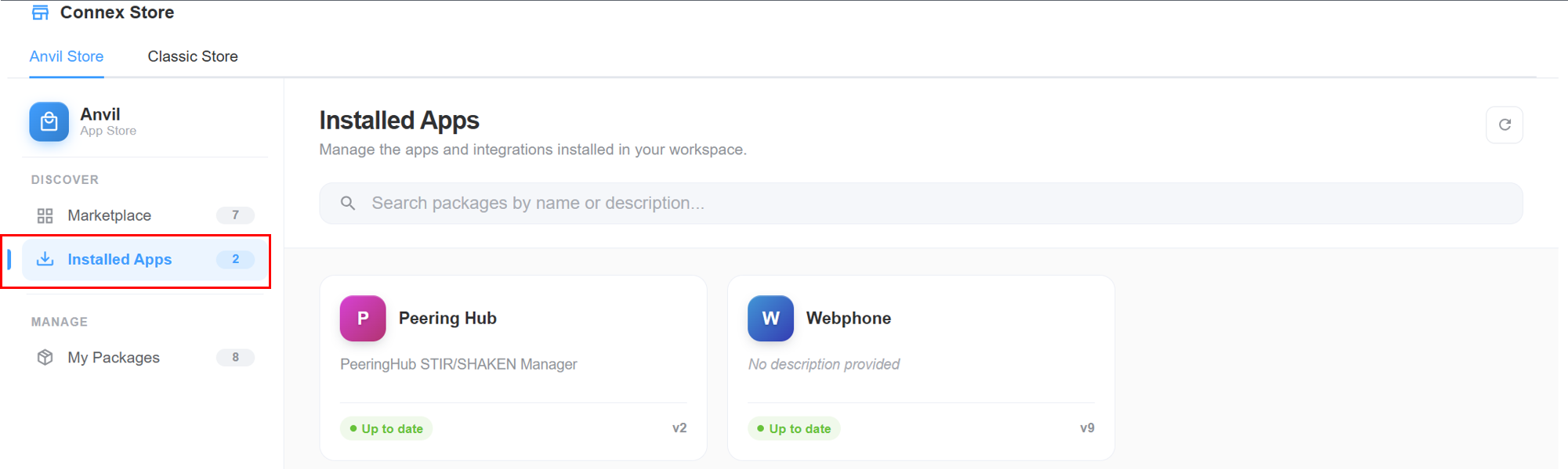
Installed Apps Layout
The Installed Apps page includes the following components.
-
Search Packages: Use the search bar to quickly locate installed applications by:
- Application name
- Description
- Keywords
The list filters automatically as you type.
-
Refresh: Click the Refresh icon in the upper-right corner to reload the installed application list and check for the latest package information.
-
Installed Application Cards: Each installed application is displayed as a package card containing key information about the application.
Each card displays:
- Application icon
- Application name
- Short description
- Installed version
- Update status
-
Update Status: Installed applications indicate whether updates are available Up to Date/Update Available.
My Packages
The My Packages section is the package management area of the Anvil App Store, allowing developers and publishers to manage the applications they have created and published to the ConnexCS package registry.
From this page, you can view all of your packages, monitor their publication status, track version numbers, and manage package visibility.
My Packages Layout
The My Packages page contains the following components.
-
Search Packages: Use the search bar to quickly find your packages by:
- Package name
- Description
- Keywords
The package list updates automatically as you type.
-
Refresh: Click the Refresh icon in the upper-right corner to reload the package registry and display the latest package information.
-
Package Cards: Each package you own is displayed as a card containing important publishing information.
Each card includes:
- Package icon
- Package name
- Description
- Visibility
- Publication status
- Current version
Package Visibility
Each package includes a visibility label that determines who can access it.
| Visibility | Description |
|---|---|
| Public | The package is available to all users with access to the App Store. |
| Private | The package is restricted to authorized users or organizations. |
Publication Status
The publication status indicates whether a package is available for installation.
| Status | Description |
|---|---|
| Published | The package has been published to the registry and is available according to its visibility settings. |
| Draft | The package has been created but has not yet been published. Draft packages are not available for installation by other users. |
Version Management
Each package displays its current version number (for example, v1, v2, or v9).
Publishing a new release creates a new version while preserving previous releases, allowing developers to:
- Track application releases
- Publish updates without replacing previous versions
- Maintain a clear version history
To explore the available Anvil applications, see the Anvil Apps documentation page.
Useful Tools and Applications
Autonomous Calling
Overview
This application allows autonomous dialling of numbers from an uploaded list.
Steps to Use the App
- Navigate to Setup App Store Autonomous Calling and click
Install.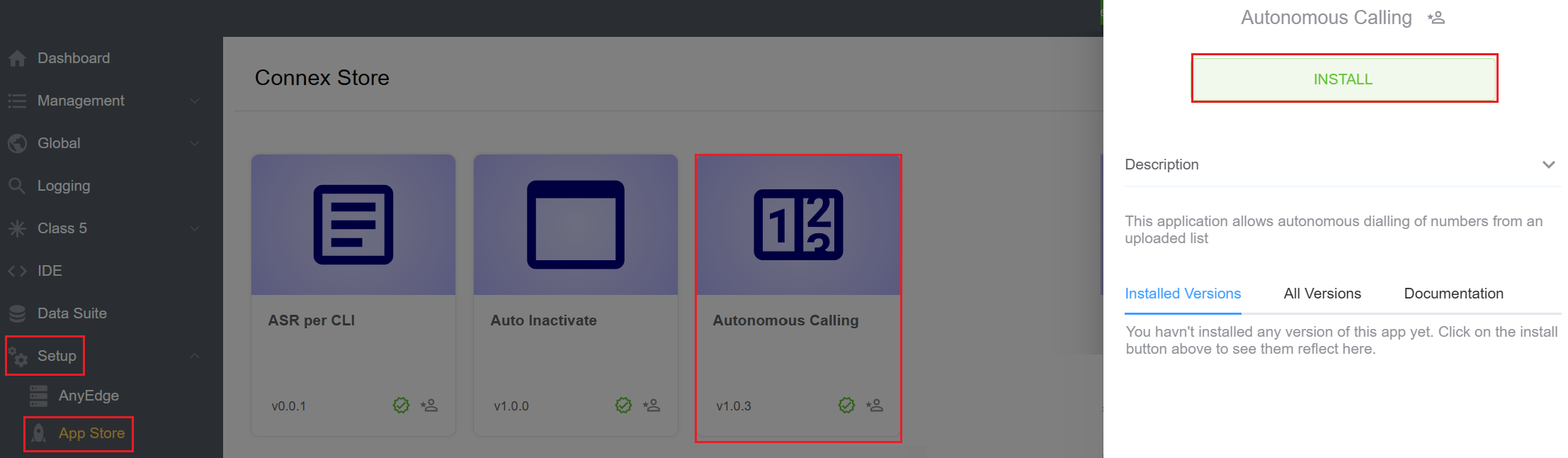
- A window will appear, select the version of the app and hit
Installagain.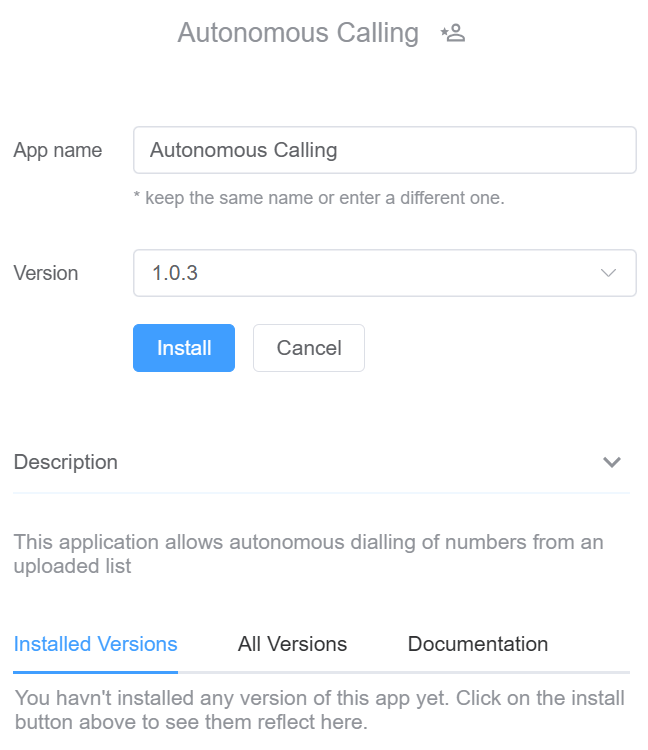
- After refreshing the Control Panel, the
Auto Dialbutton will appear on the side bar. - Click
Auto Dial, thenConfigto setup the calling process.- Select the
Customerfrom the drop-down. - Enter the
Outbound Serverin use. - Enter the extension in the
Endpointfield. - Enter the
CLIand clickConfirm.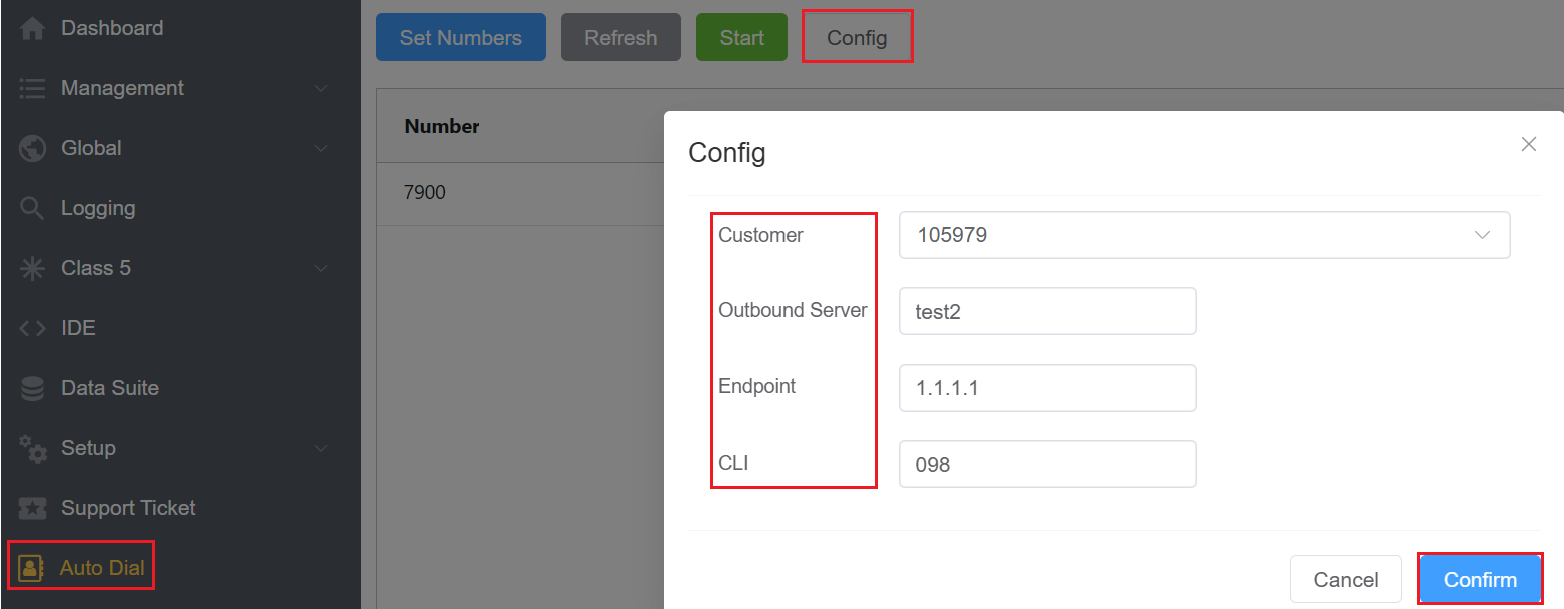
- Select the
- Click on
Set Numbersto add the number list for the autonomous dialing process. Click onSave Numbers.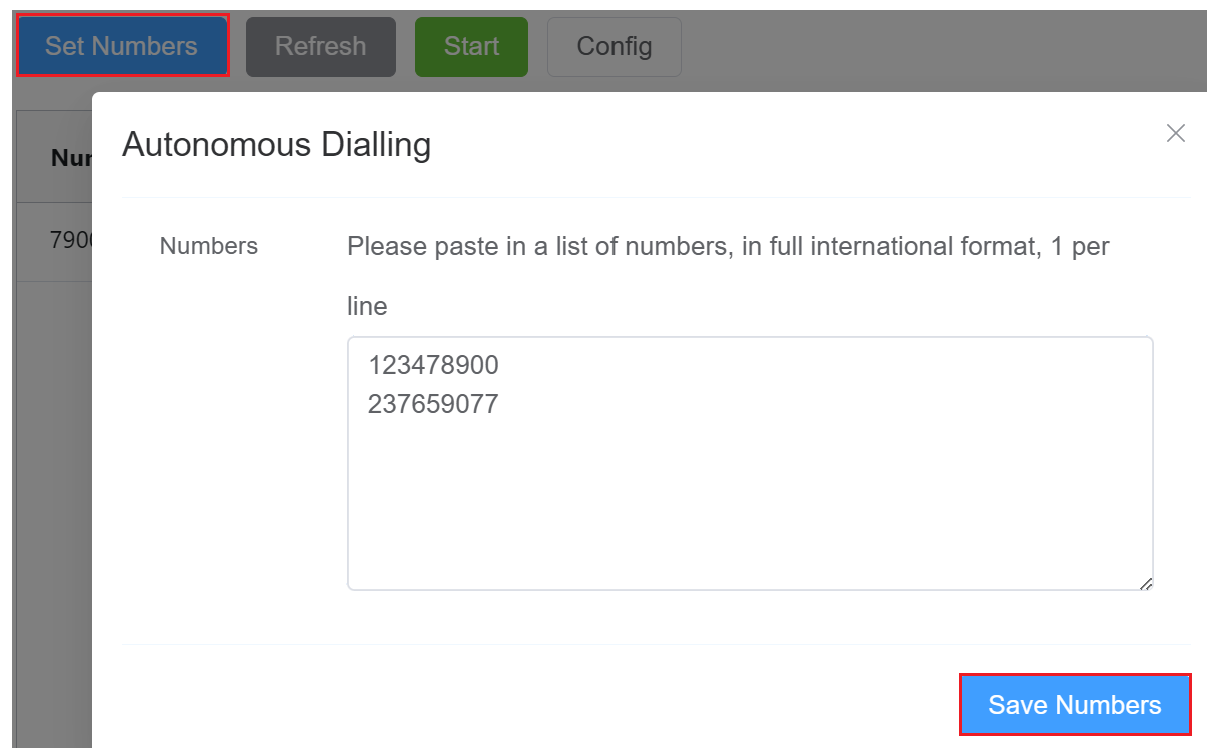
- Hit the
Startbutton to dial the numbers automatically. `.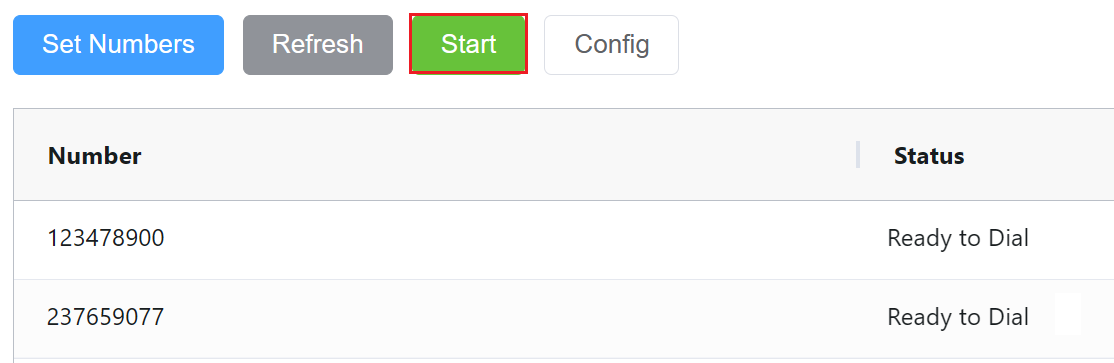
Important Note
- Ensure that all phone numbers are entered in the complete international format (e.g., +44 for the UK, +1 for the US).
- When entering multiple phone numbers, list each number on a new line.
ASR per CLI
Overview
The ASR per CLI application provides a report that displays the Answer-Seizure Ratio (ASR) for each CLI (Caller Line Identification), helping users analyze call performance at a granular level.
Instead of manually compiling call metrics, users can view ASR data directly within the application, enabling faster insights, better monitoring, and more informed decision-making.
Steps to Use the App
-
Navigate to Setup App Store ASR per CLI and click
Install.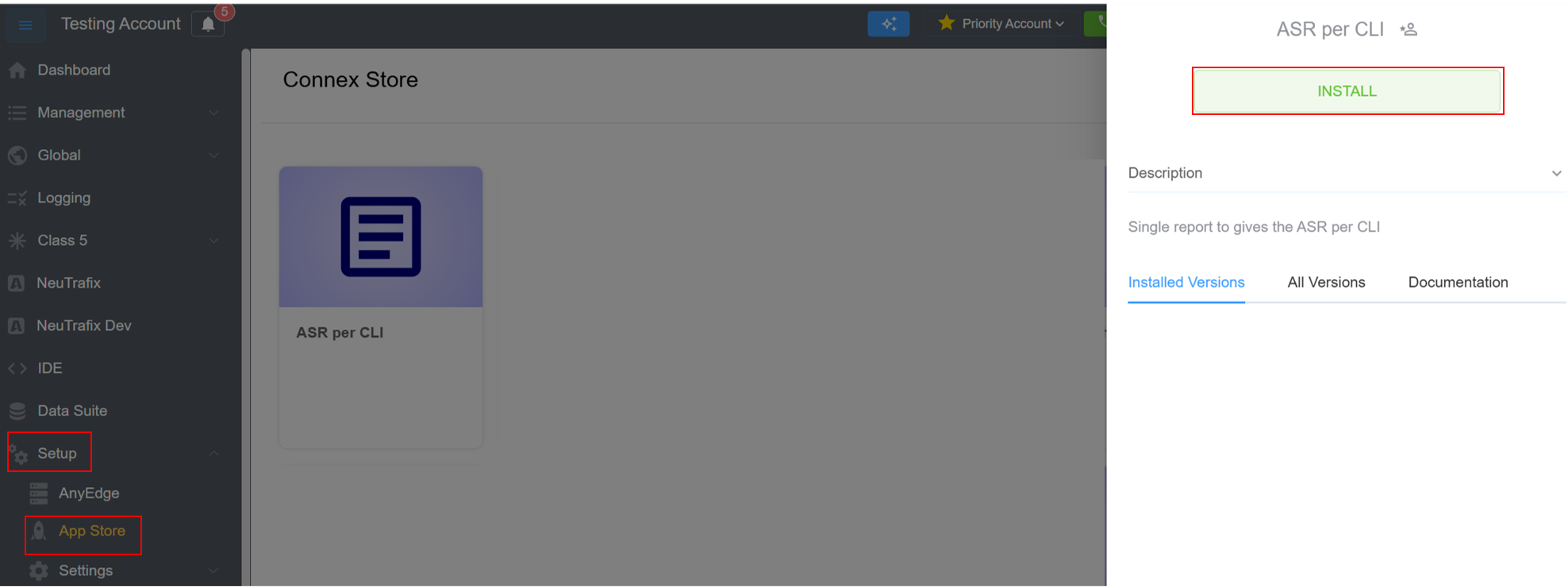
-
A window will appear, select the version of the app and hit
Installagain.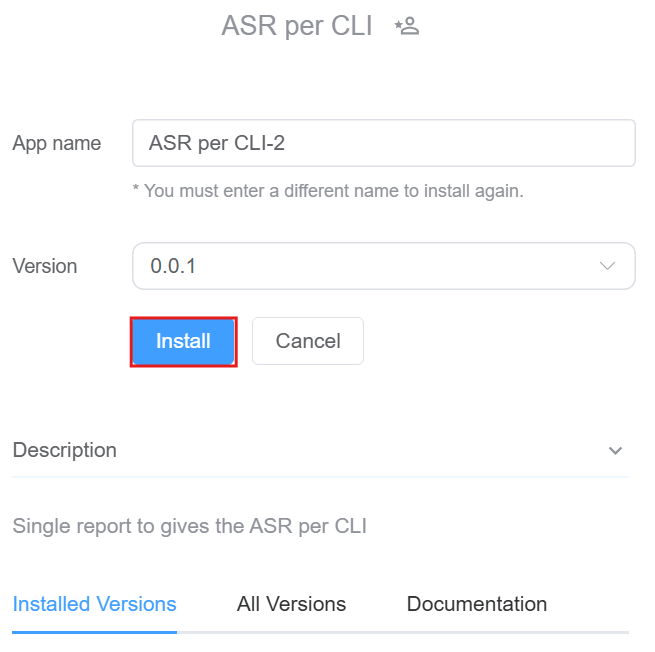
-
The installed versions are visible.
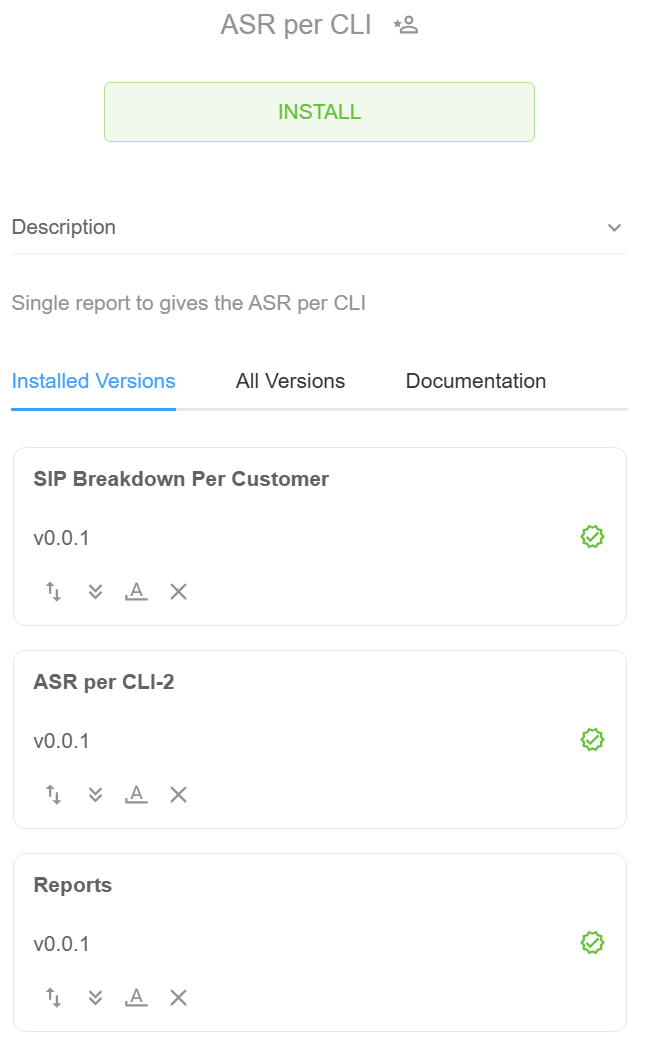
-
The installed app can be seen in Management Customer.
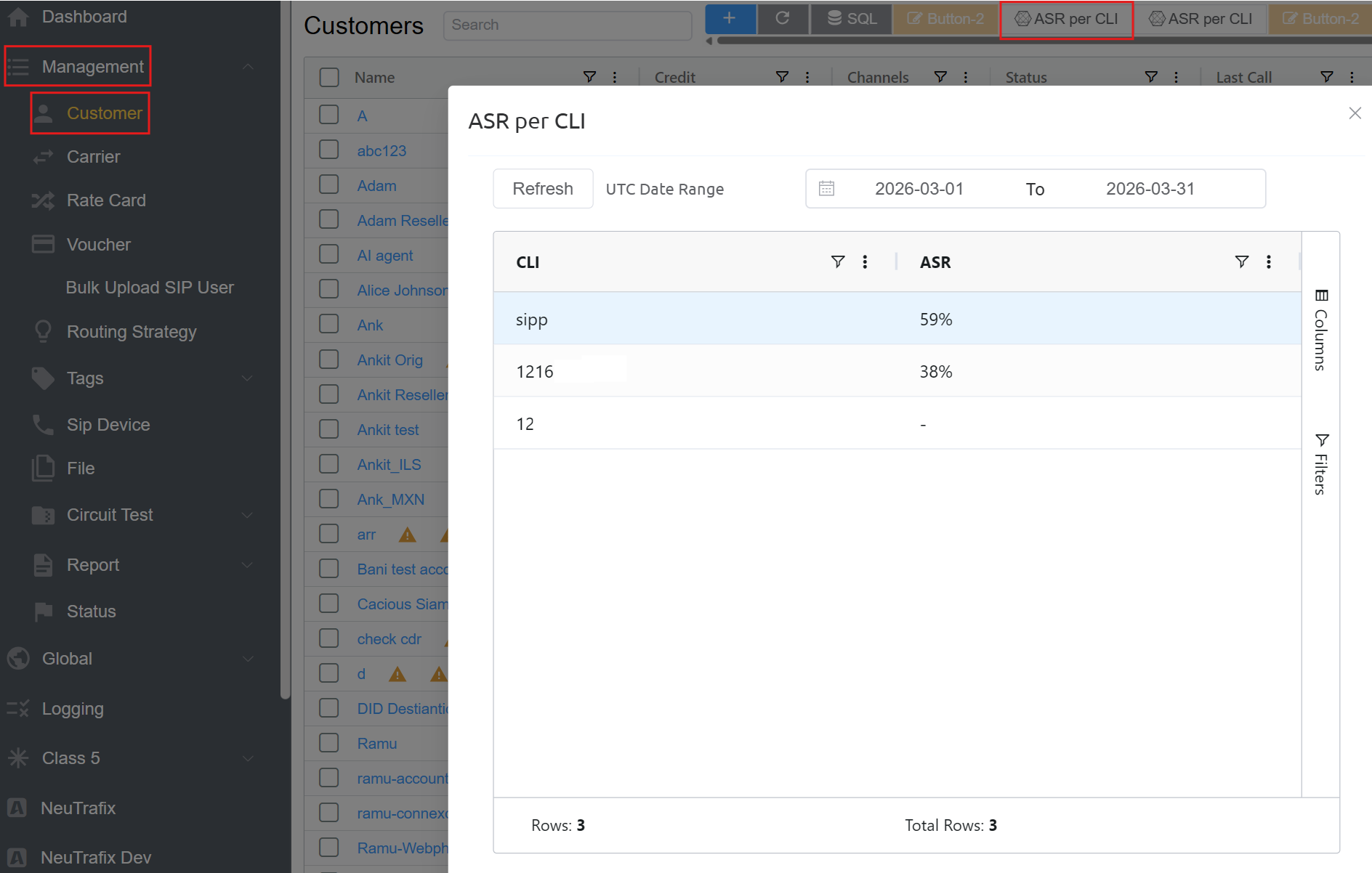
-
Click on the
ASR per CLIbutton on the top. - Select the
Date Rangeand click onrefreshto get the data.
ConnexCS Control Panel Defaults
Overview
The ConnexCS Control Panel Defaults application provides predefined configurations for commonly used modules, including:
- Carrier Win Rate
- Custom Reports
- DTMF
- Latency
- Route Stats
- Stats
- USA Calls
- USA Rate Center
These modules are already available in the system by default.
Purpose
This application allows users to install copies of the existing default modules.
The original modules remain unchanged.
The installed versions are independent copies.
Users can modify these copies as needed.
This ensures that customization can be performed without impacting the default configurations.
Steps to Use the App
-
Navigate to Setup App Store ConnexCS Control Panel Defaults and click
Install.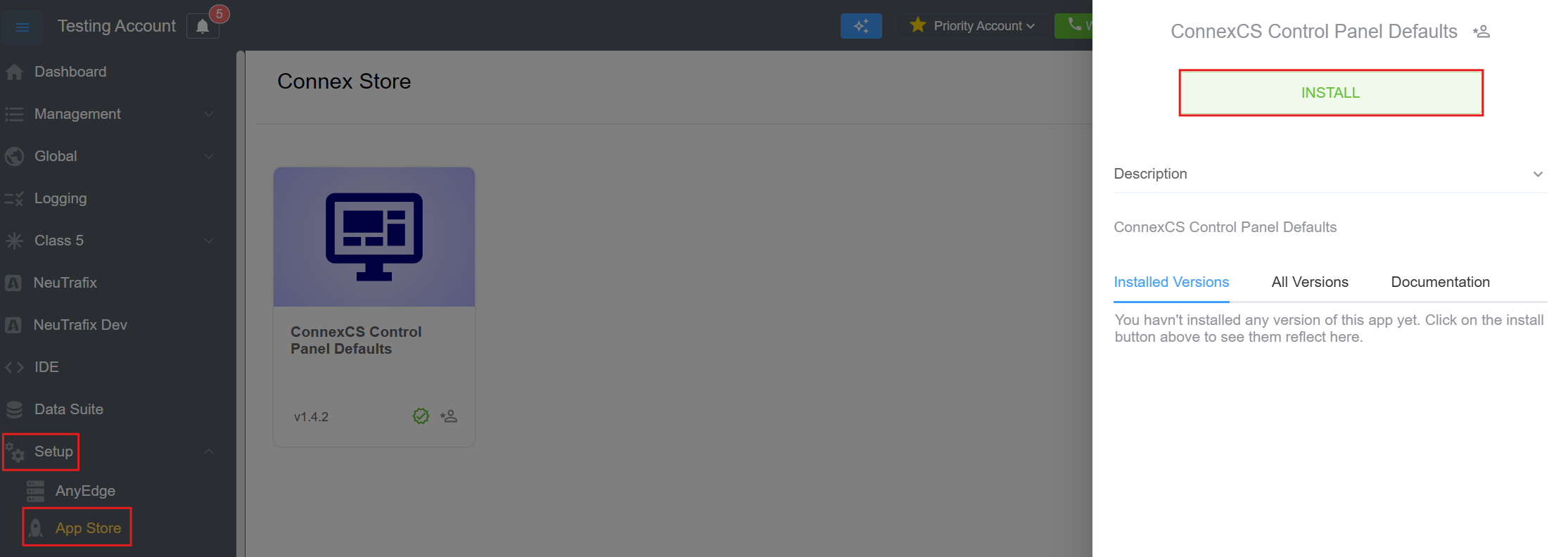
-
Fill in the
App Name,Versionand hitInstallagain. A window will appear, select the version of the app and hitInstallagain.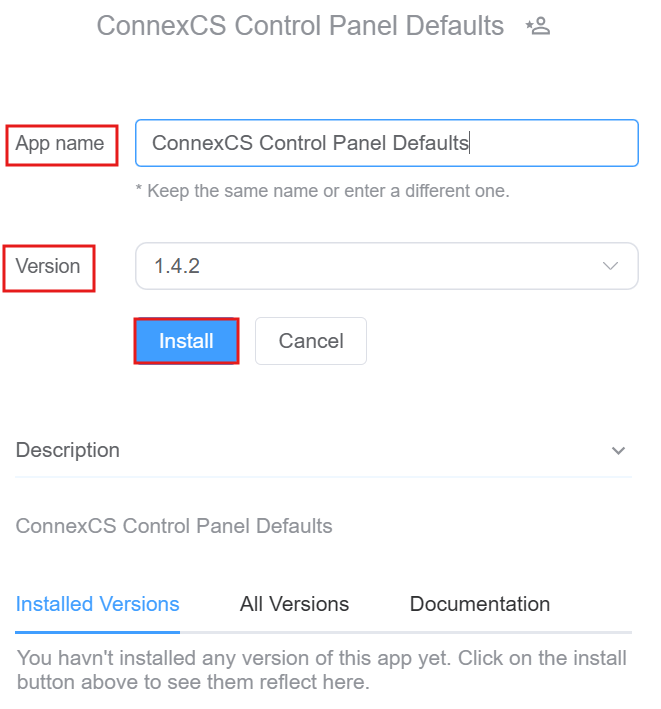
-
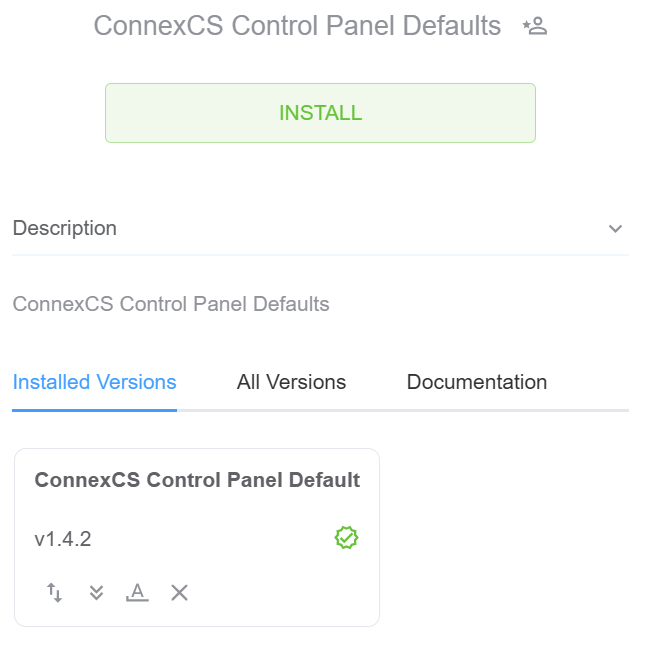
The installed versions are visible.
-
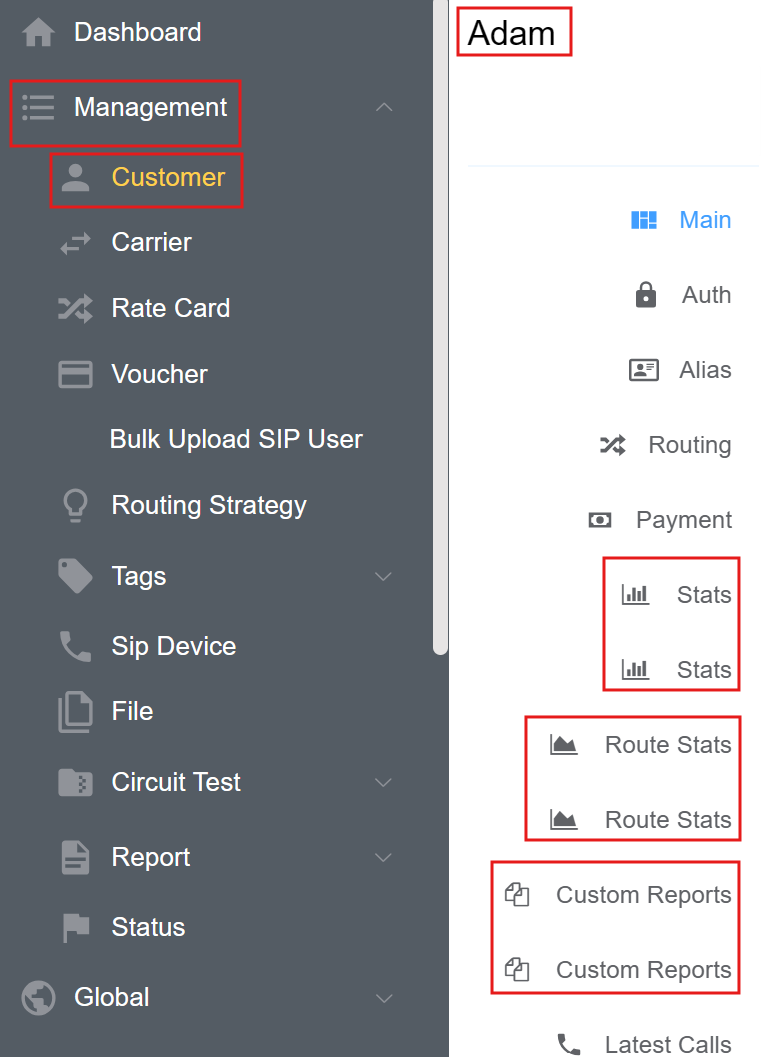
Navigate to Management Customer Customer[Name]. These duplicate features are automatically added when the application is installed. You can then customize them according to specific requirements from IDE section.
Contact Center
Click here for a comprehensive introduction and step-by-step setup guide for the Contact Center.
Sequential CLI
Overview
The Sequential CLI application enables users to automatically assign CLIs (Caller Line Identification) in a sequential order from a selected database.
Instead of manually selecting CLIs for each call, the system retrieves them sequentially from the database.
Steps to Use the App
-
Navigate to Setup App Store Sequential CLI and click
Install.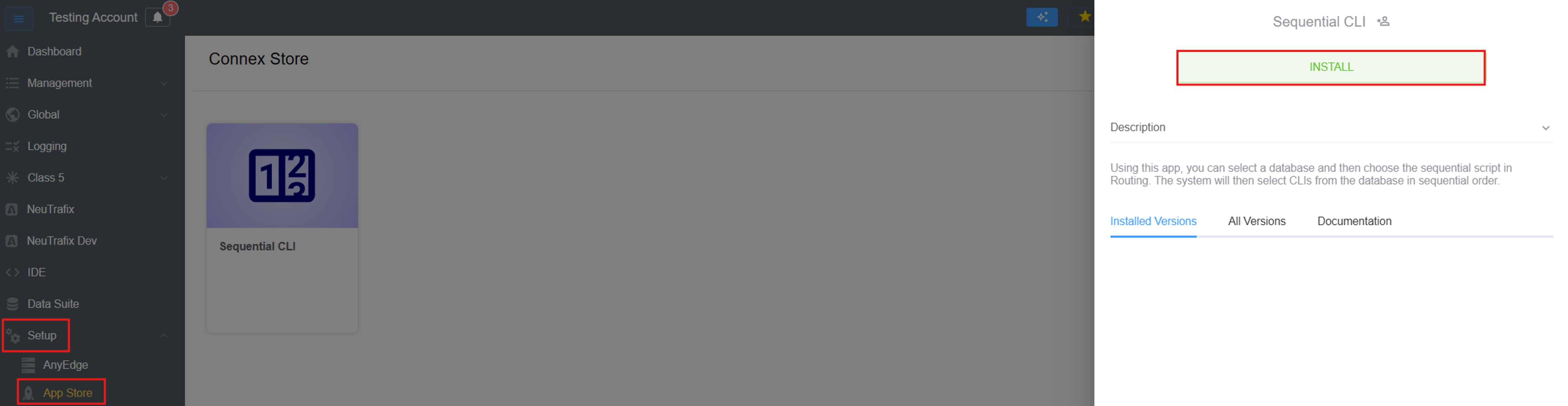
-
Fill in the
App Name,Versionand hitInstallagain.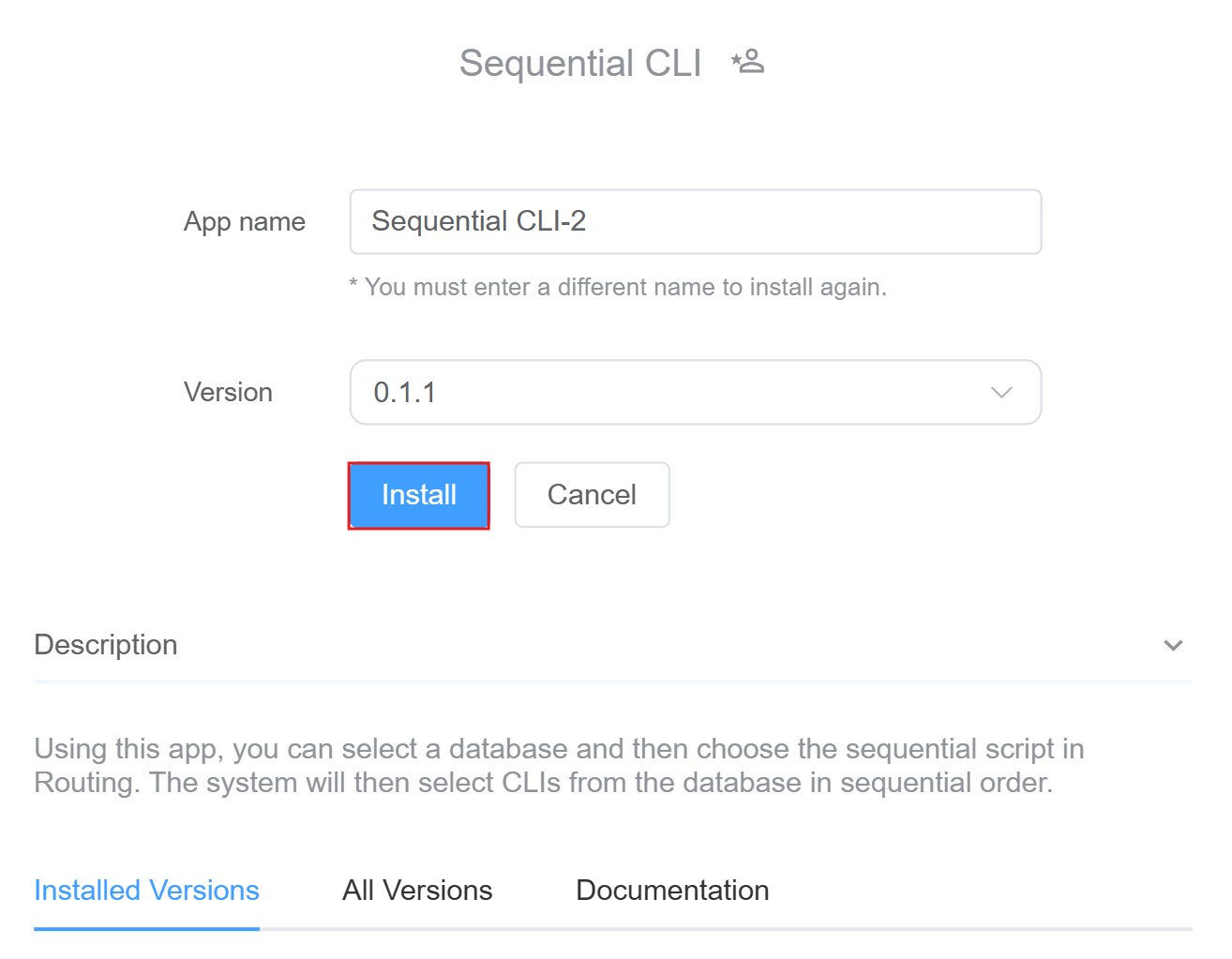
-
The installed versions are visible and click on
Config(settings button).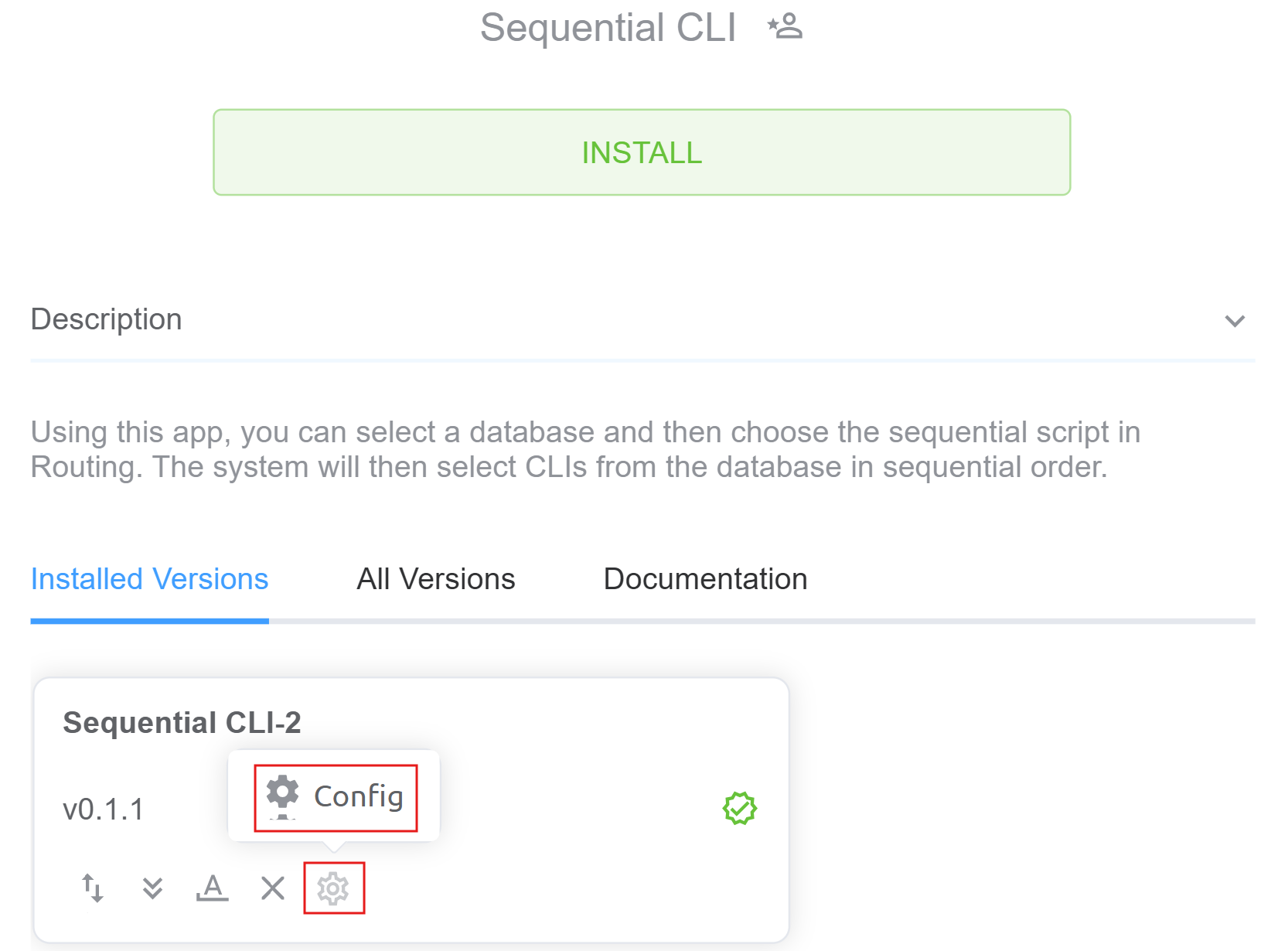
-
Select the
databaseand click onConfirm.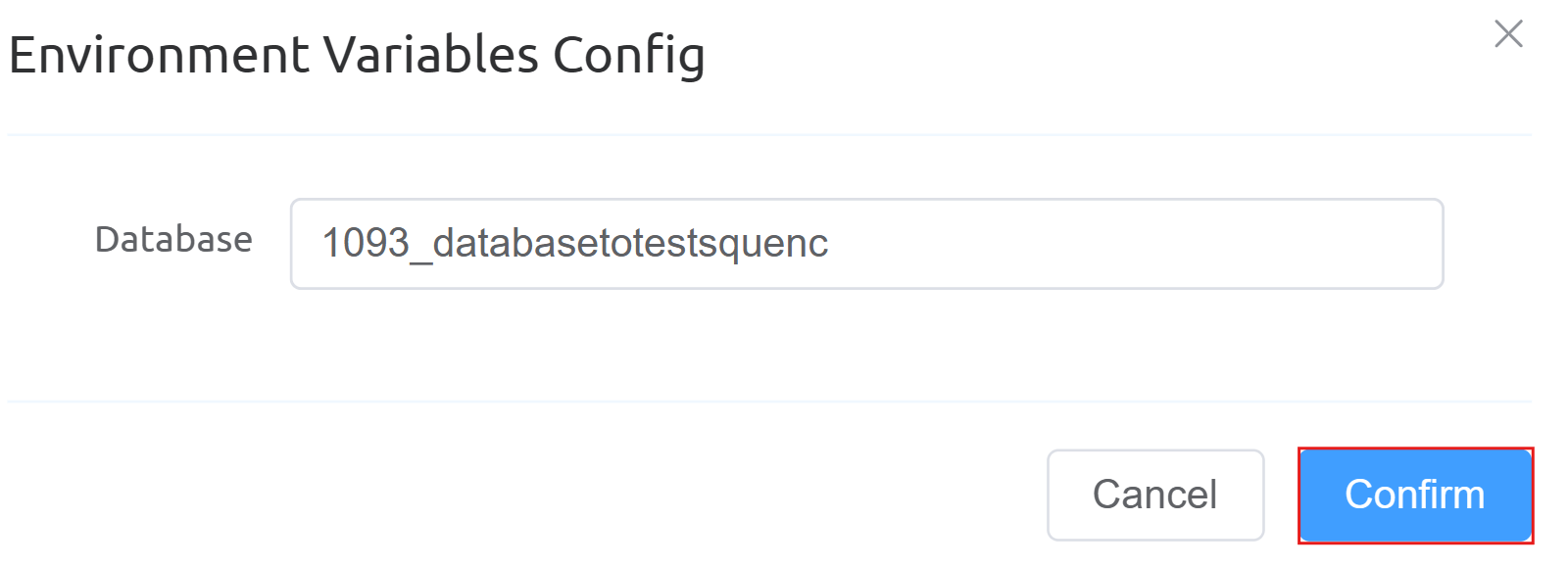
-
Navigate to Management Customer Customer[Name] Routing ScriptForge. Select the
Sequential CLIand clickSave.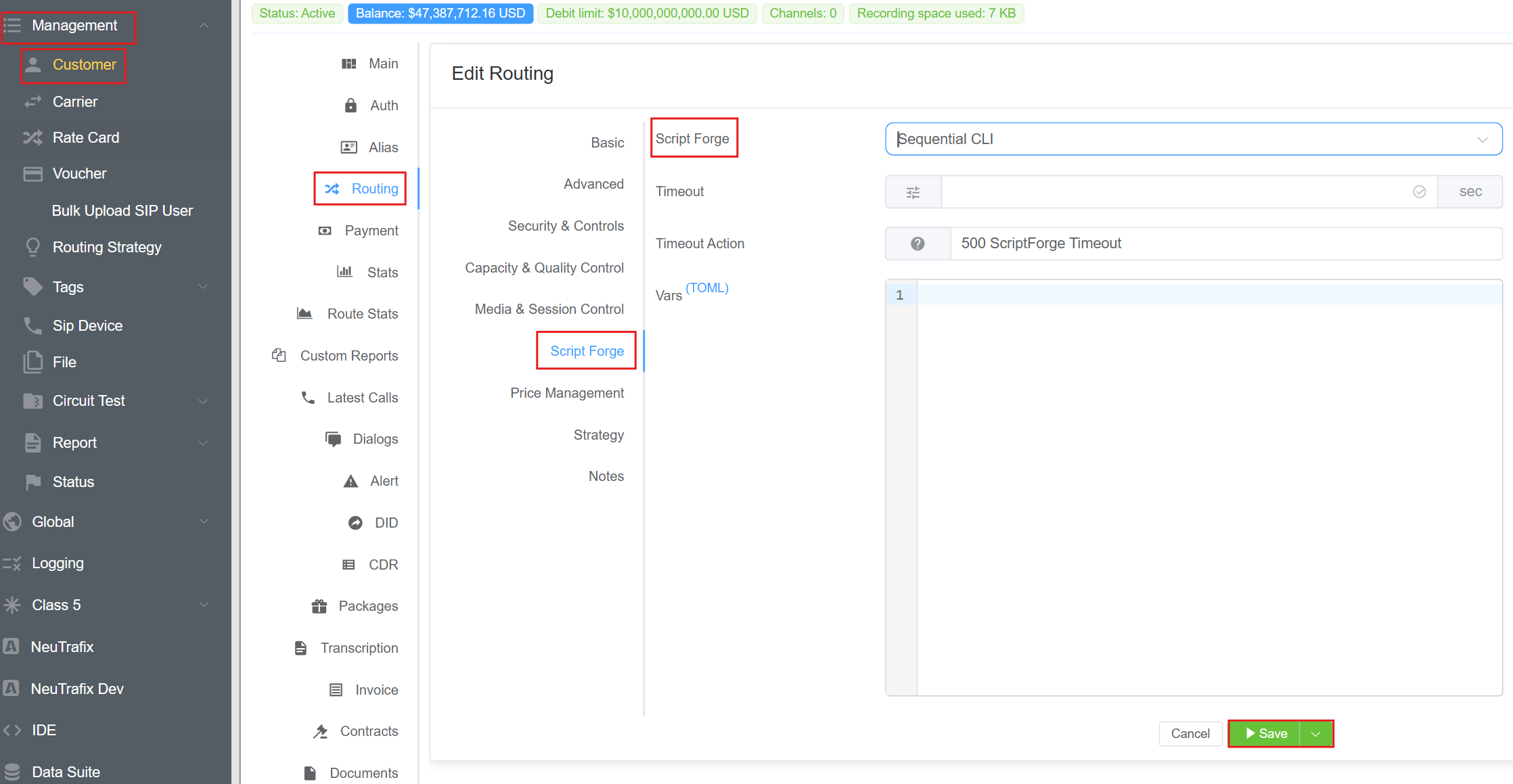
Cx MCP
Overview
The Cx MCP (ConnexCS MCP App) provides an extensible Model Context Protocol (MCP) server for the ConnexCS Application Platform, enabling seamless integration between AI agents, tools, and external services.
Instead of building integrations manually, users can leverage MCP to connect applications, execute actions, and access data through standardized interfaces, enabling scalable automation and AI-driven workflows.
How It Works
The app provides a set of default MCP tool calls out of the box.
You can review, edit, or extend these tools from the IDE section of the app. Once customized, your modified tools will be used in place of the defaults.
Steps to Use the App
-
Navigate to Setup App Store Cx MCP and click
Install.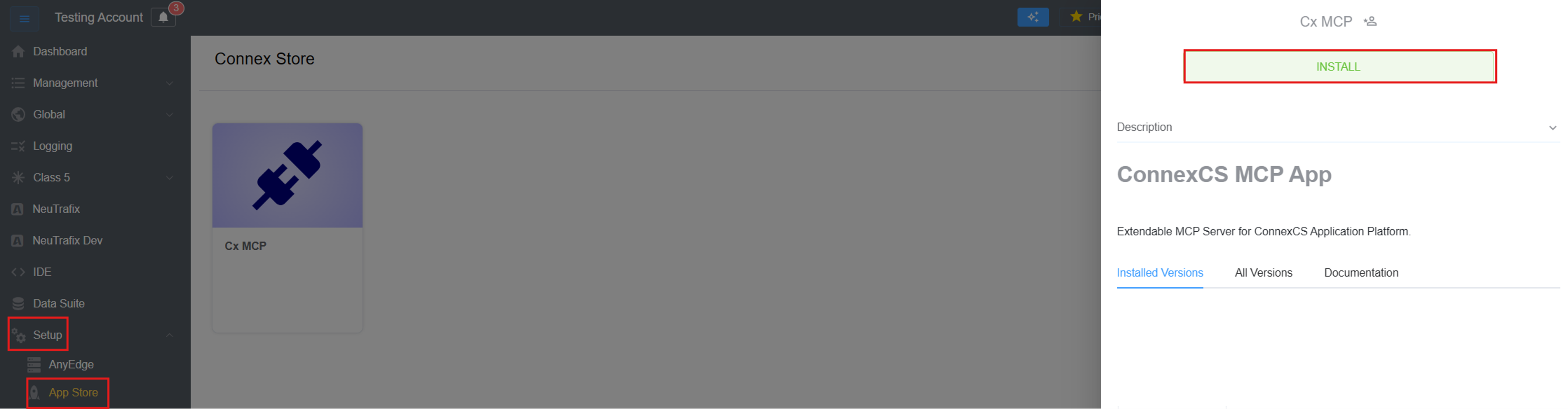
-
Fill in the
App Name,Versionand hitInstallagain.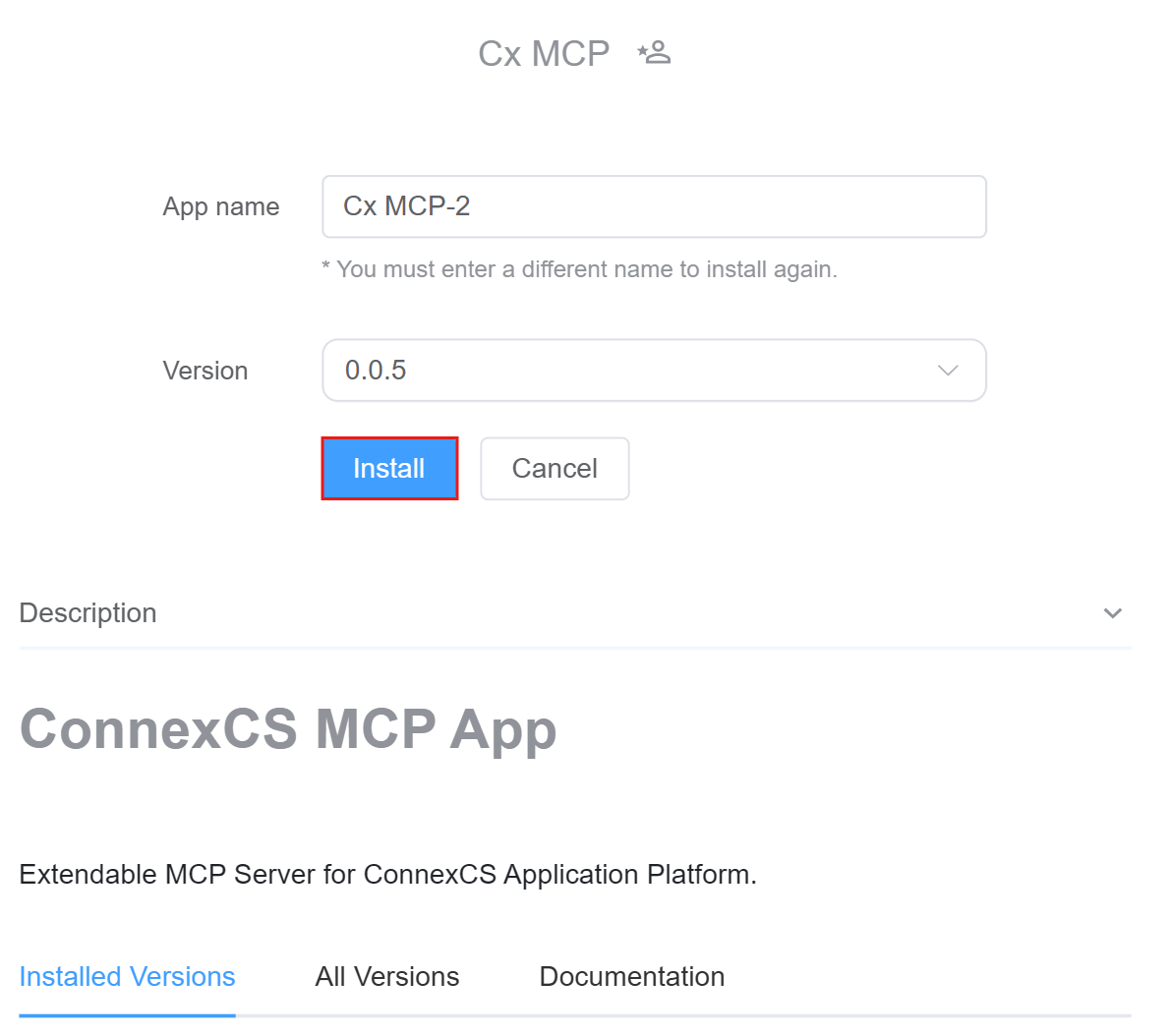
-
The installed versions are visible and click on
Config(settings button). -
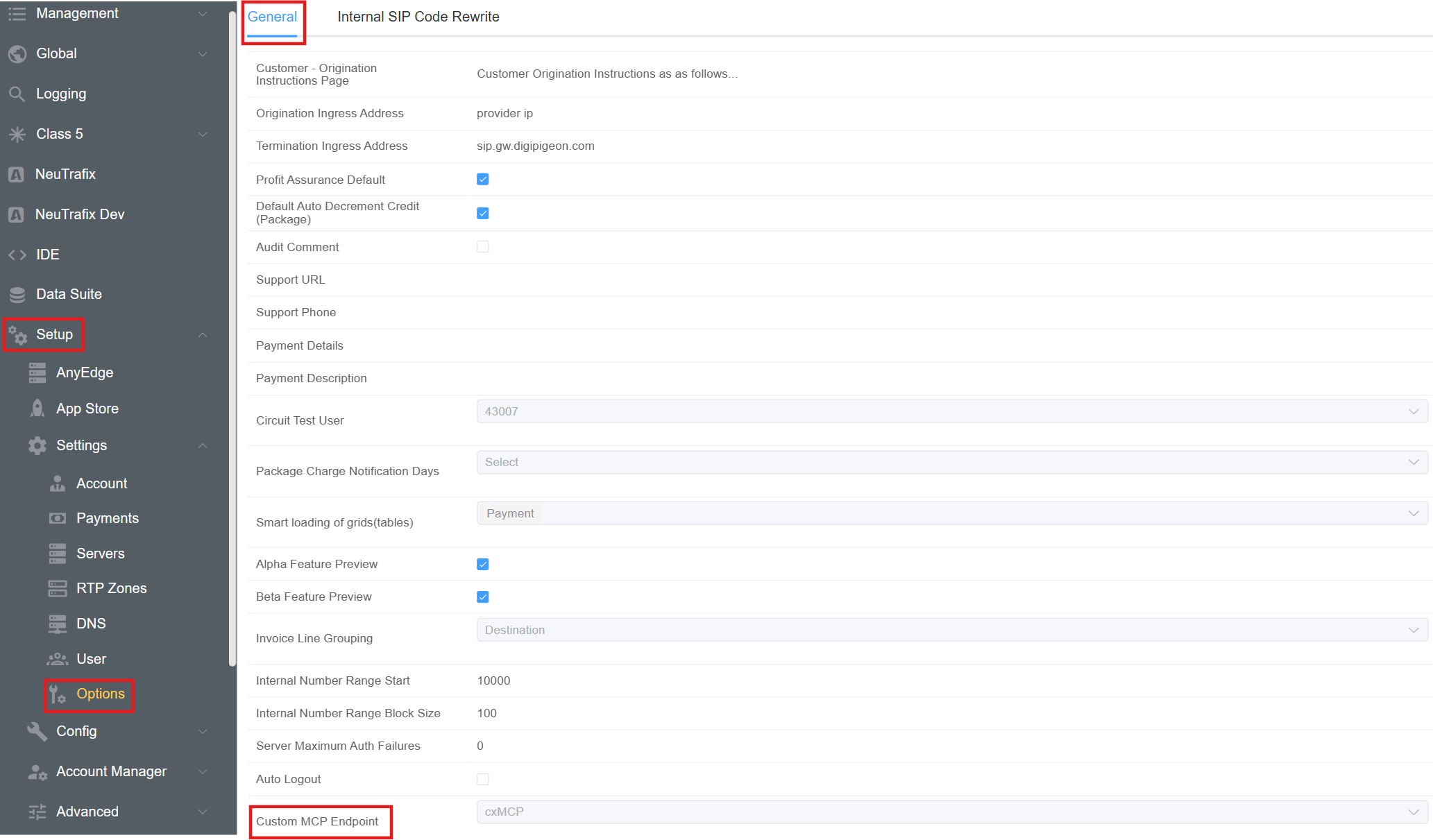
Point the MCP Server to Your App: Navigate to Setup Options General Custom MCP Endpoint. Select the app from the drop-down menu.
Paynamics
Overview
The Paynamics application in ConnexCS enables users to process payments through the Paynamics payment gateway, providing a secure and streamlined way to handle transactions within the platform.
It supports payments exclusively in Philippine Peso (PHP), ensuring compatibility with Paynamics’ supported currency, and is designed to facilitate billing, top-ups, and payment workflows efficiently.
Steps to Use the App
-
Navigate to Setup App Store Paynamics and click
Install.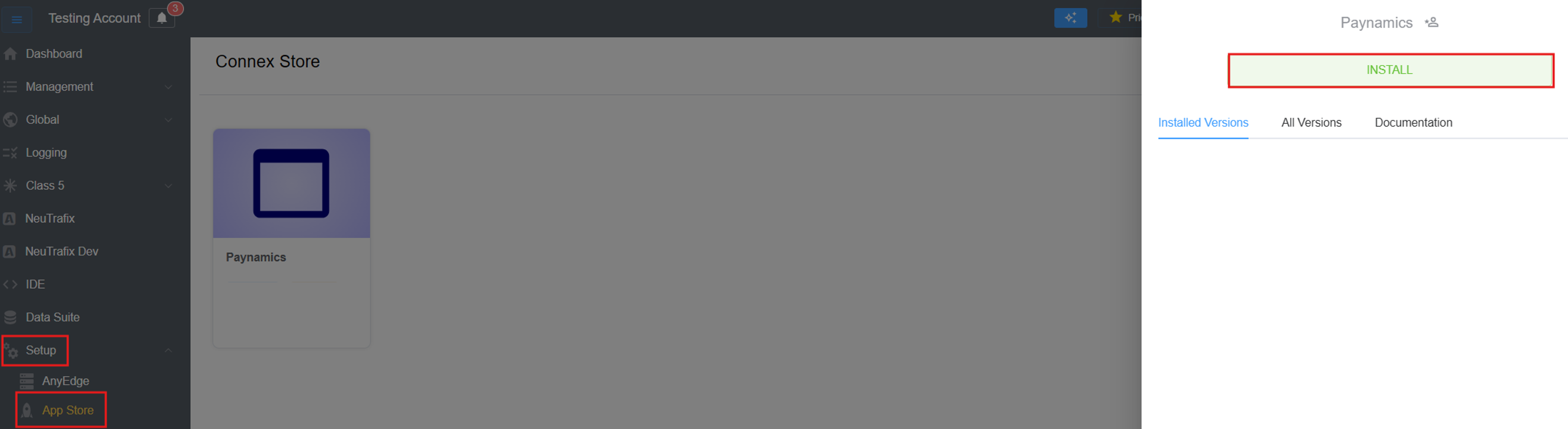
-
Fill in the
App Name,Versionand hitInstallagain.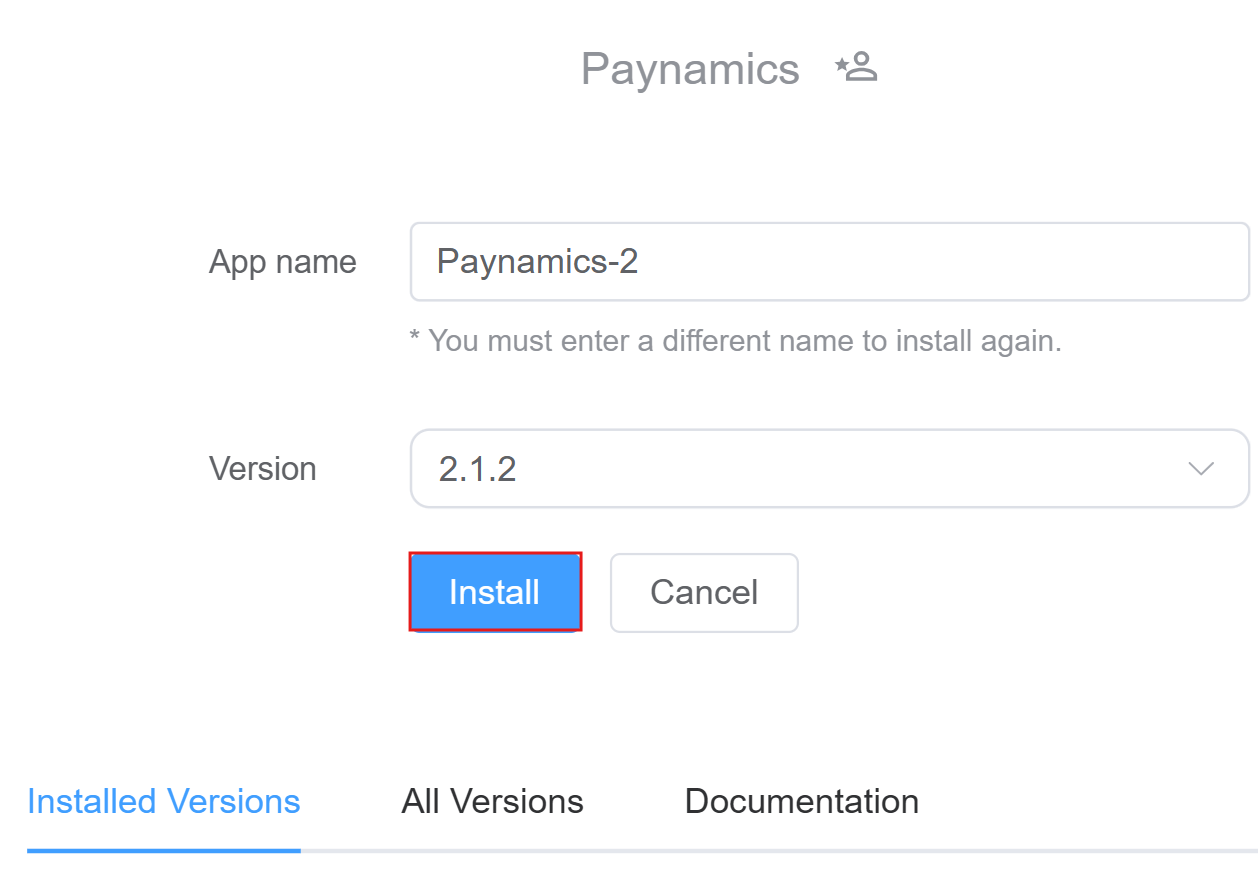
-
The installed versions are visible and click on
Config Paynamics(settings button).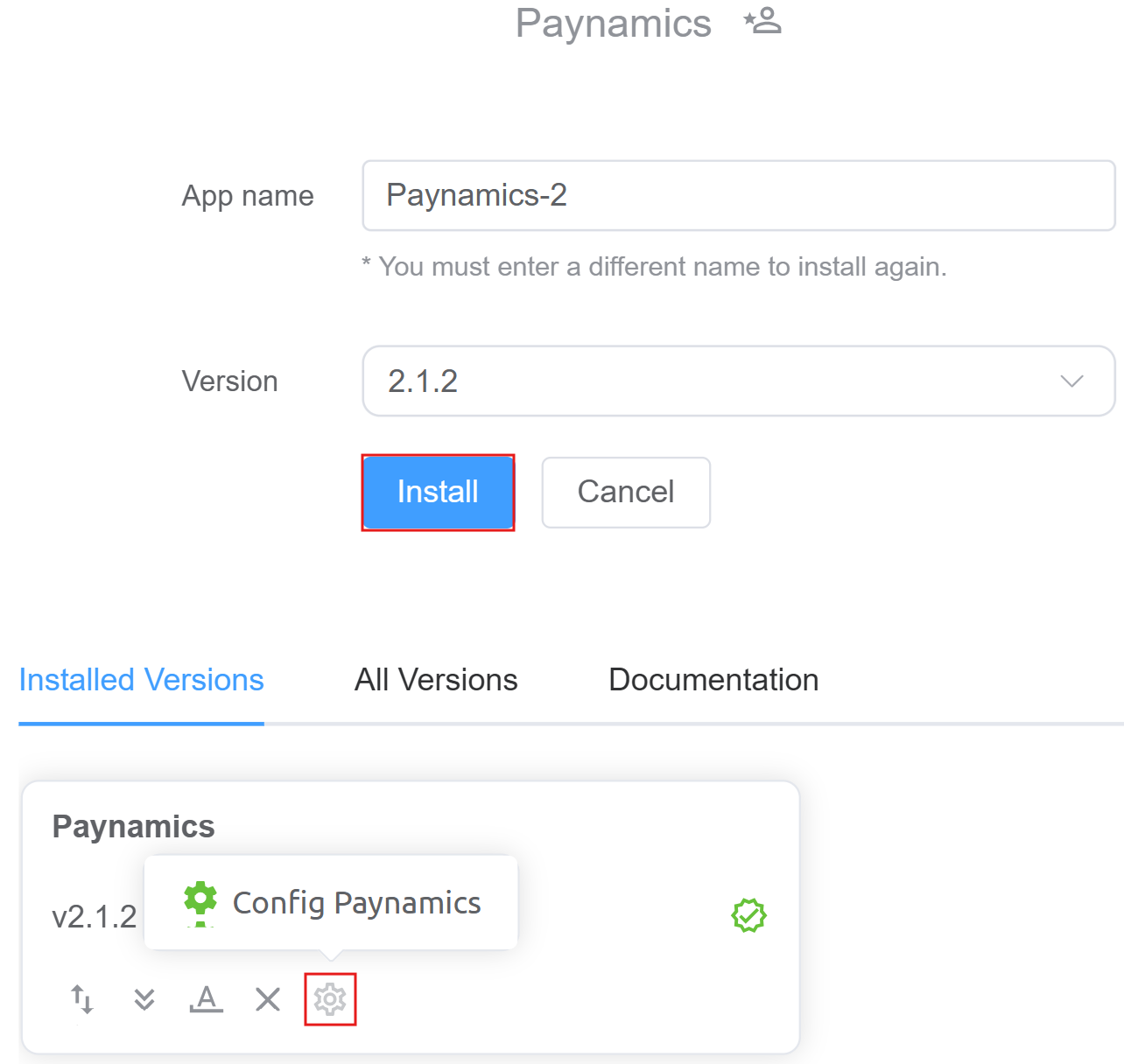
-
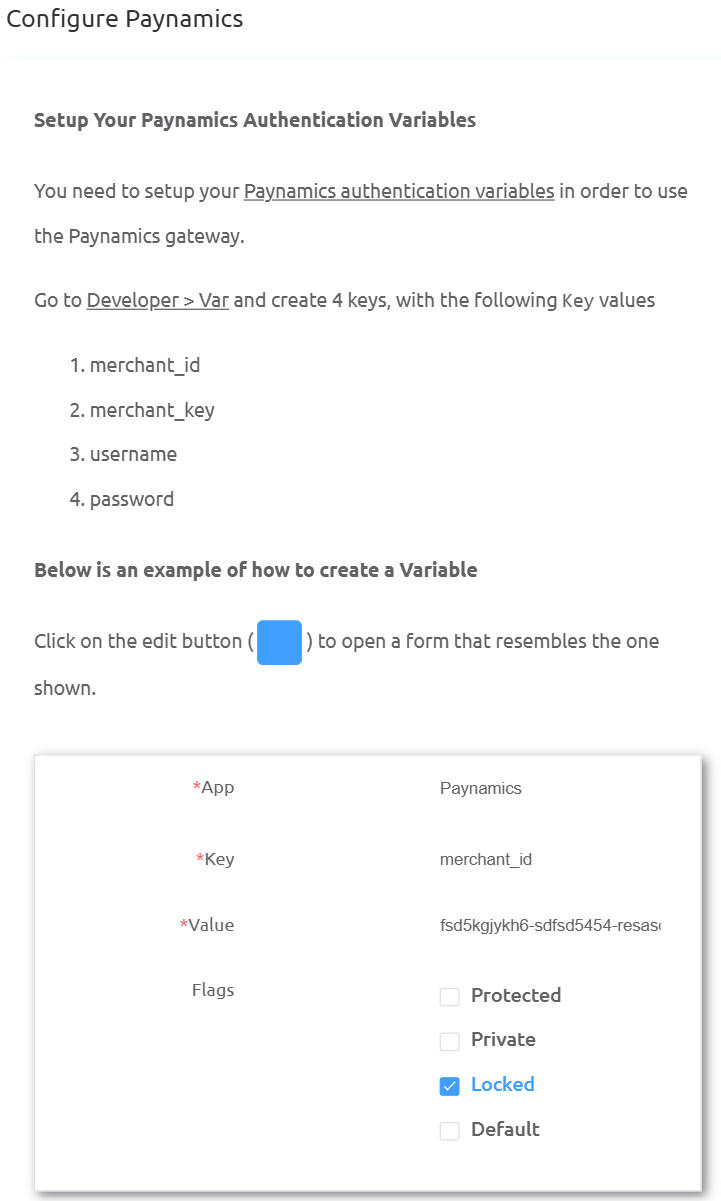
Follow the configuration steps as shown in the following image.