Siperb App
Document Metadata
Category: Setup / Application Store & App Deployment
Audience: Administrators, Support Team, Product Team, Customer Administrators, End Customers
Difficulty: Beginner
Time Required: Approximately 5–10 minutes for installation and initial setup; additional time may be required for custom domain configuration.
Prerequisites: An active ConnexCS account with access to Setup and App Store; permission to install applications; a Siperb account or service access, as applicable; and a valid domain if using a custom domain.
Related Topics: App Store, App Deployment, Customer Portal, Custom Domains
Next Steps: Install Siperb from the Connex Store, verify its installation status, configure a custom domain if required, and confirm that the Siperb navigation option is available in the appropriate portal. Test the integration with an authorized customer account.
Overview
The Siperb app is an application developed by ConnexCS to integrate Siperb with the ConnexCS platform. It's distributed through the Connex Store and can be installed by an authorized administrator.
Siperb is a browser-based SIP phone and Session Border Controller (SBC) service that enables users to make and manage VoIP calls. The Siperb app integrates the service with ConnexCS, allowing users to install and configure it from the App Store. The Siperb app is an application developed by ConnexCS to integrate Siperb with the ConnexCS platform. It is distributed through the Connex Store and can be installed by an authorized administrator.
Once installed, Siperb is available as a separate option in the ConnexCS portal navigation, allowing authorized users to access the integration directly from their account.
The app also supports custom domain configuration, enabling administrators to map a domain to the application. Creating a custom domain triggers an automatic rebuild and republication of the app.
The Siperb app is managed through the Connex Store's Anvil App Store interface, where administrators can review the installed version, check its status, view version history, manage application settings, and uninstall the app when necessary.
Why Use the Siperb App?
Integrating Siperb into ConnexCS provides a centralized way to make the Siperb service accessible through the ConnexCS portal.
The integration helps administrators:
- Deploy the Siperb app through the Connex Store.
- Provide users with a dedicated Siperb entry in the portal navigation.
- Manage the installed application and its version through a centralized interface.
- Configure a custom domain for the application when required.
- Review application status and version history.
- Remove the application if it's no longer required.
Key Features
- App Store Installation: Install Siperb directly from the Connex Store without manually deploying the application.
- Application Version Management: View the installed version, latest available version, and version history.
- Installation Status: Check whether the app is installed and up to date.
- Custom Domain Configuration: Associate a domain with the Siperb app. Creating a domain automatically rebuilds and republishes the application.
- Portal Navigation Integration: Display a dedicated Siperb option in the portal's side navigation for convenient access.
- Application Lifecycle Management: Manage the app through the Connex Store, including installation and uninstallation.
- Version Change History: Review version approval status, submission details, and changelog information.
Benefits
- Simplifies the deployment of Siperb within the ConnexCS environment.
- Provides centralized access to the Siperb integration.
- Reduces the need to navigate to a separate application listing each time the service is required.
- Makes it easier for administrators to review application versions and update status.
- Supports custom domain mapping for deployment requirements.
- Provides a straightforward application management workflow through the Connex Store.
Steps to Install and Use the app
-
Navigate to Setup App Store Anvil Store Marketplace, locate Siperb, and click
Install.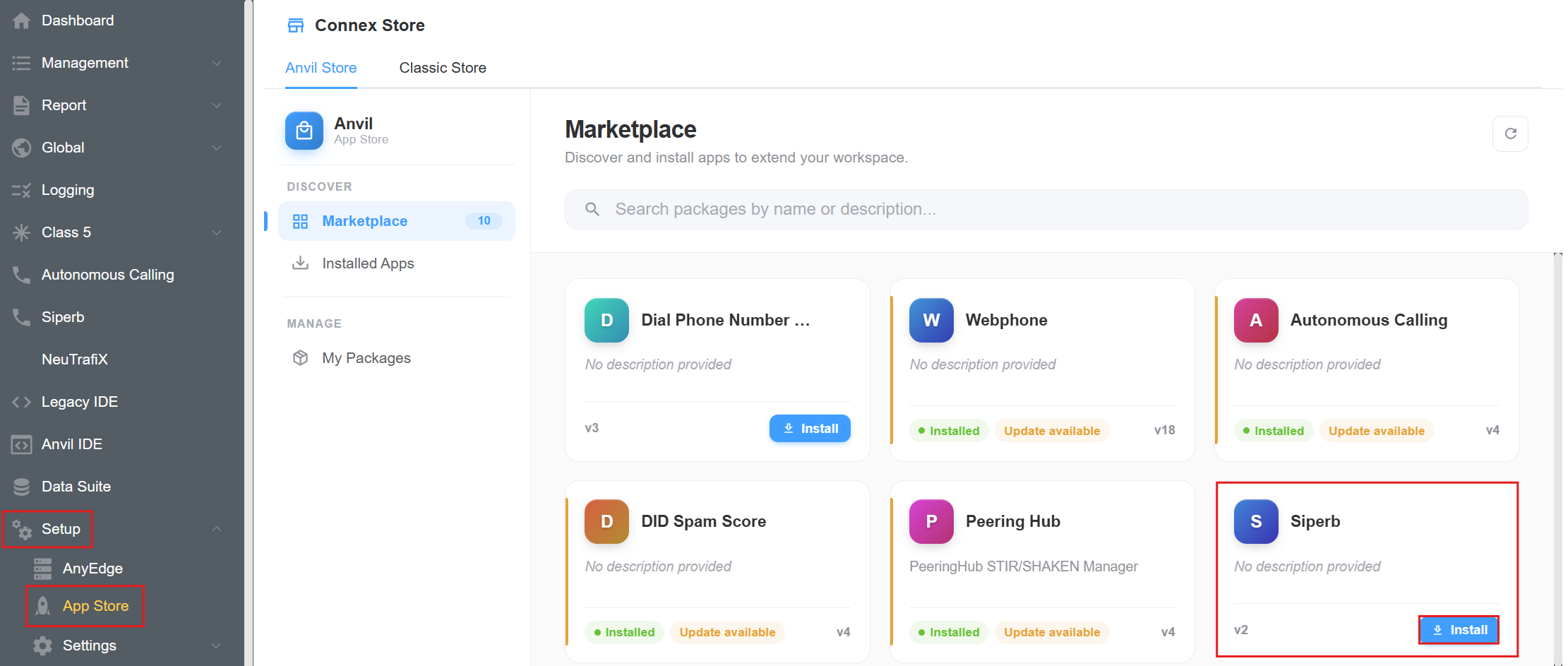
-
An installation confirmation window will appear. Review the package details and click
Installagain.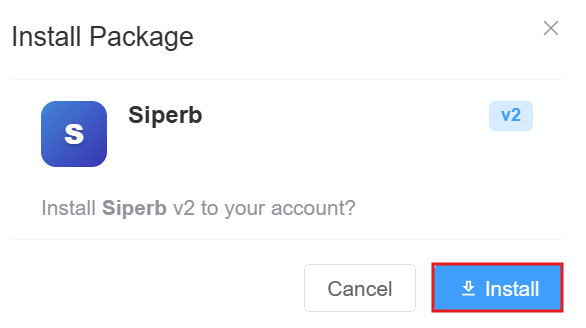
-
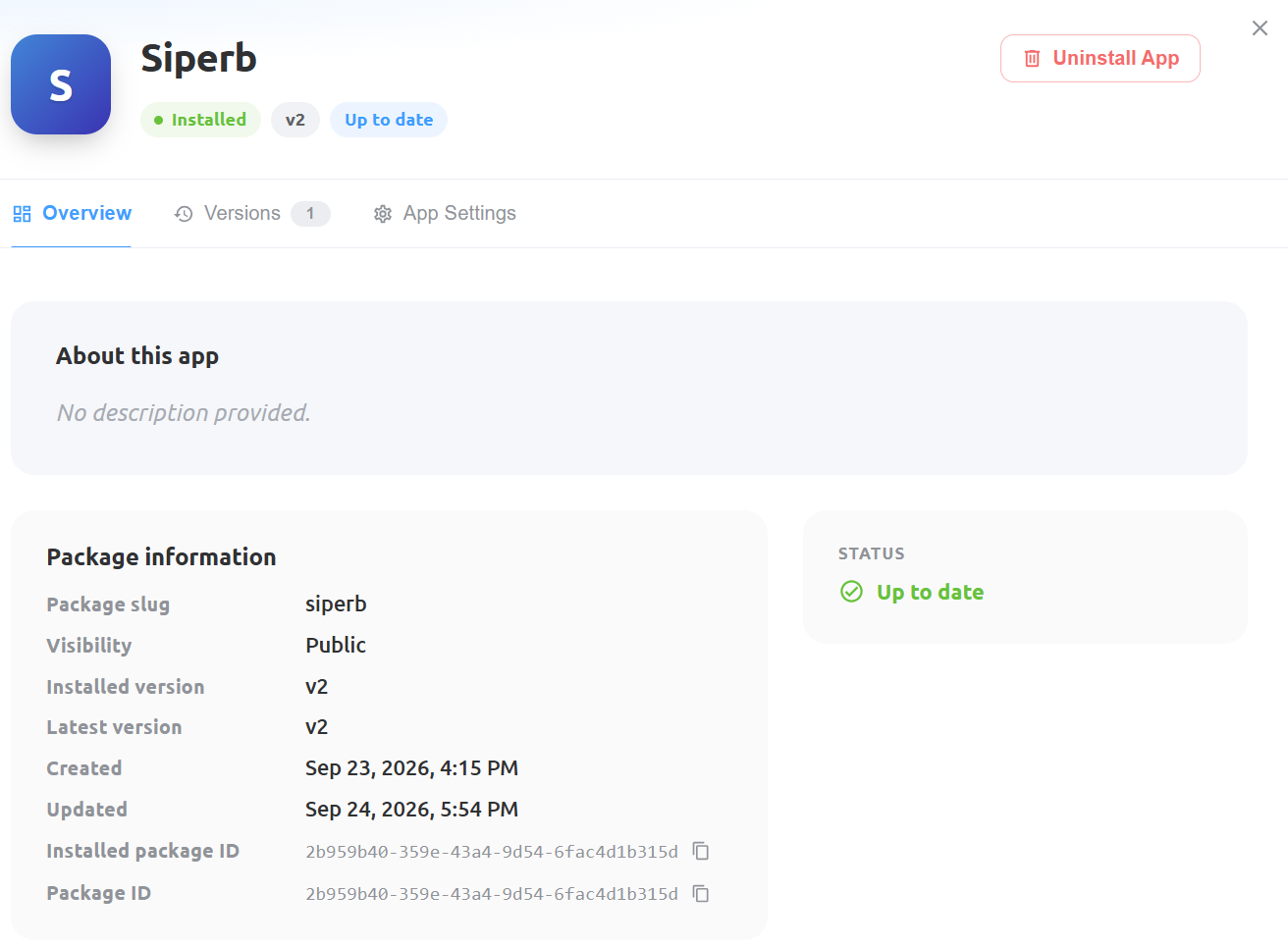
Once installed, open Siperb from the installed applications list. The application details page displays the installation status, installed version, latest version, and package information.
-
To review the installed version and its changelog, navigate to the
Versionstab. This section displays the version information, approval status, submission details, and changes included in the release.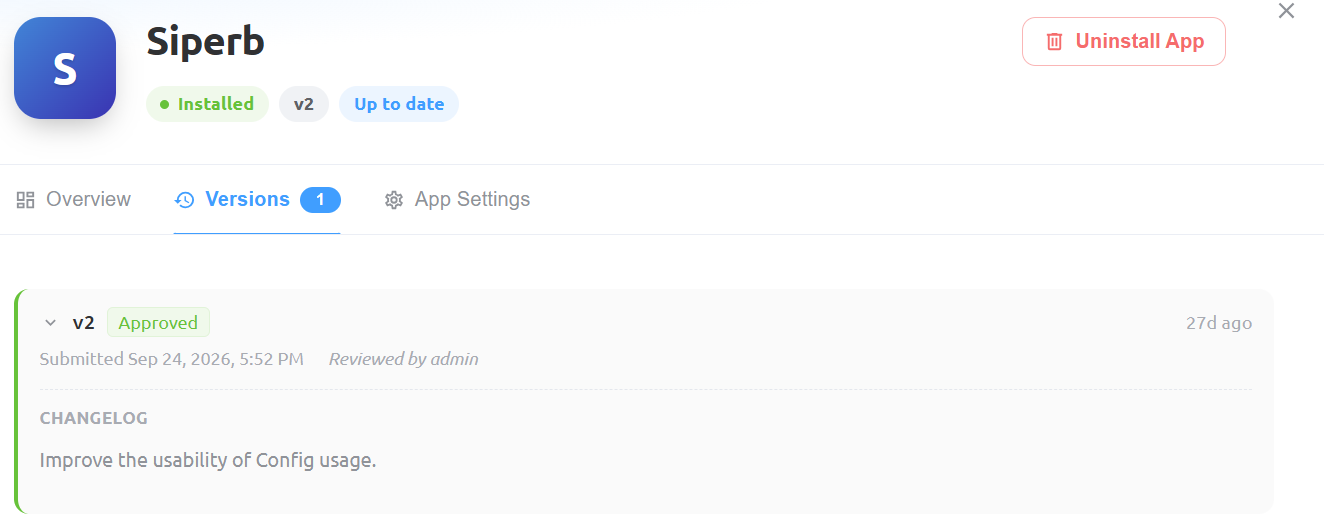
-
To access Siperb, log in to the ConnexCS portal and click
Siperbin the left-hand navigation menu. This opens the Siperb application integrated with your ConnexCS account.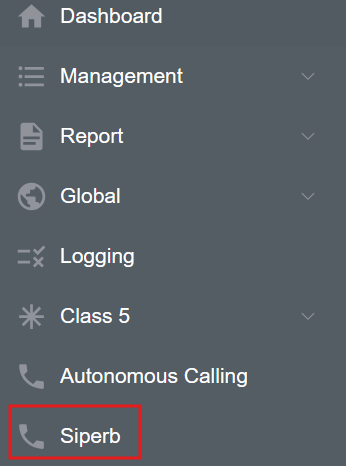
-
A new window will appear where you need to enter the
Siperb API Token.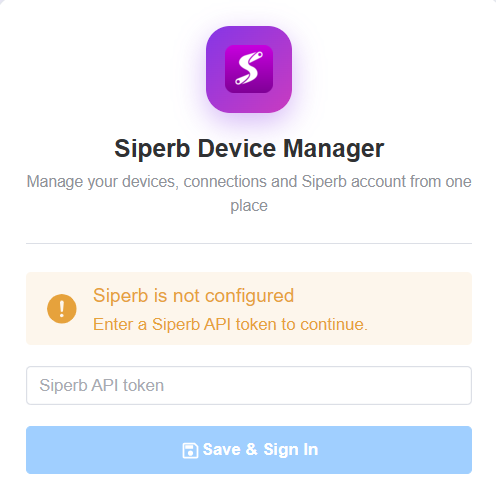
-
Steps to get the
Siperb API Token:- Login to your Siperb Account.
- Click on Settings Developer Settings. Click on
Generate Token.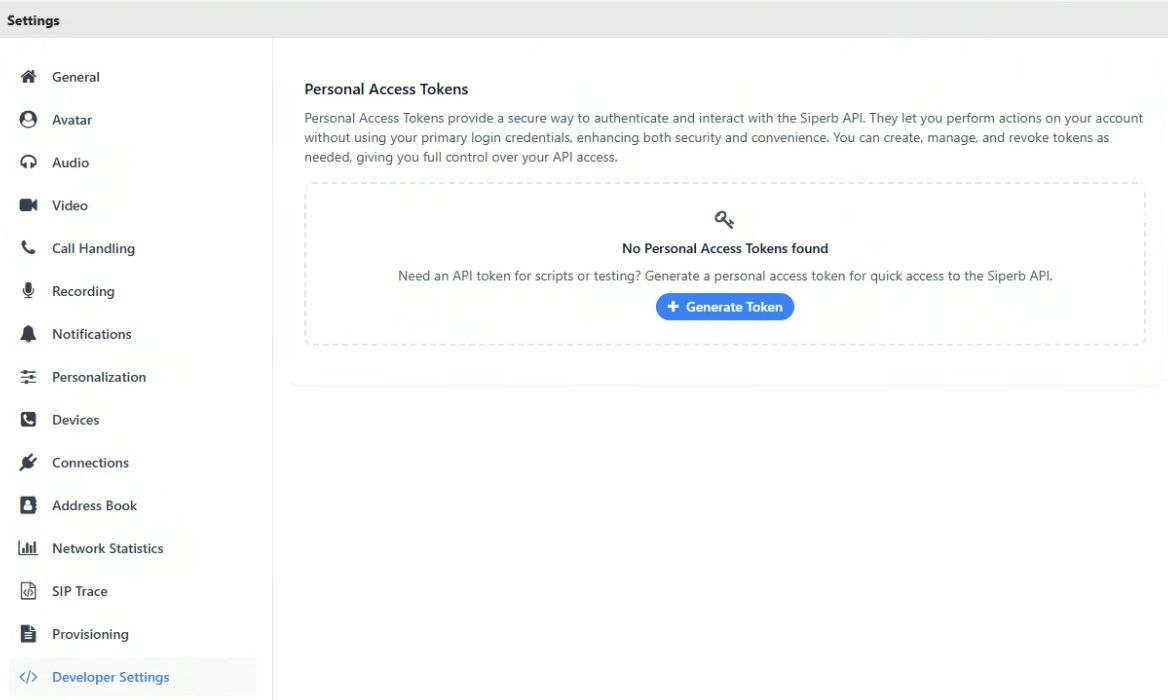
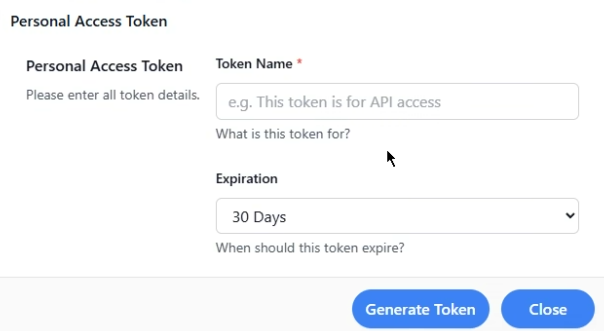
- A Personal Access Token window will appear, enter the Token Name, select the Expiration days from the drop-down and click on Generate Token.
-
Copy the generated token.
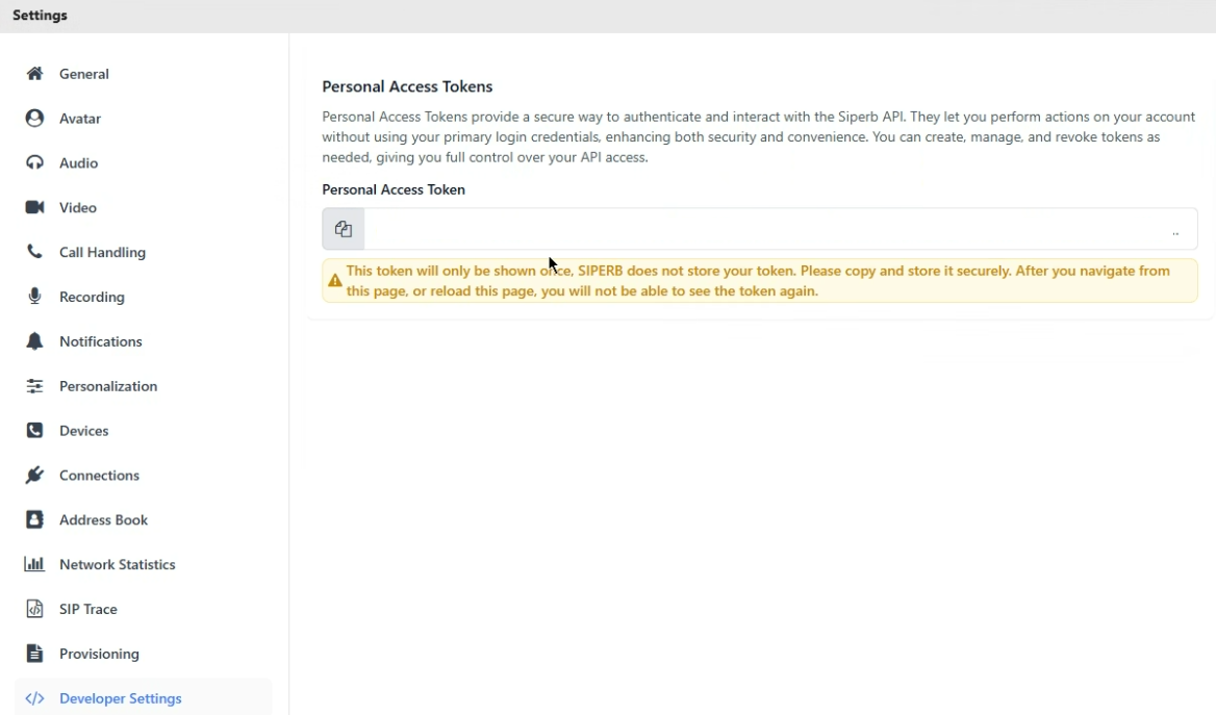
Security Warning: The Siperb API token is displayed only once. Copy it and store it securely in an approved password manager or secrets vault. Treat the token as a password, and do not share it or expose it in documentation, screenshots, or source control.
-
Navigate to the Control Panel, click on the Siperb application. Paste the generated token and click on
Save and Sign In.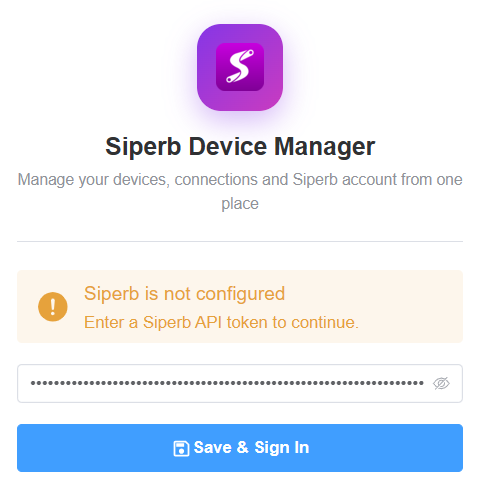
App Features
Siperb Dashboard
It provides a quick overview of the account, registered devices, and configured connections. It allows users to monitor their setup and quickly access device and connection management options.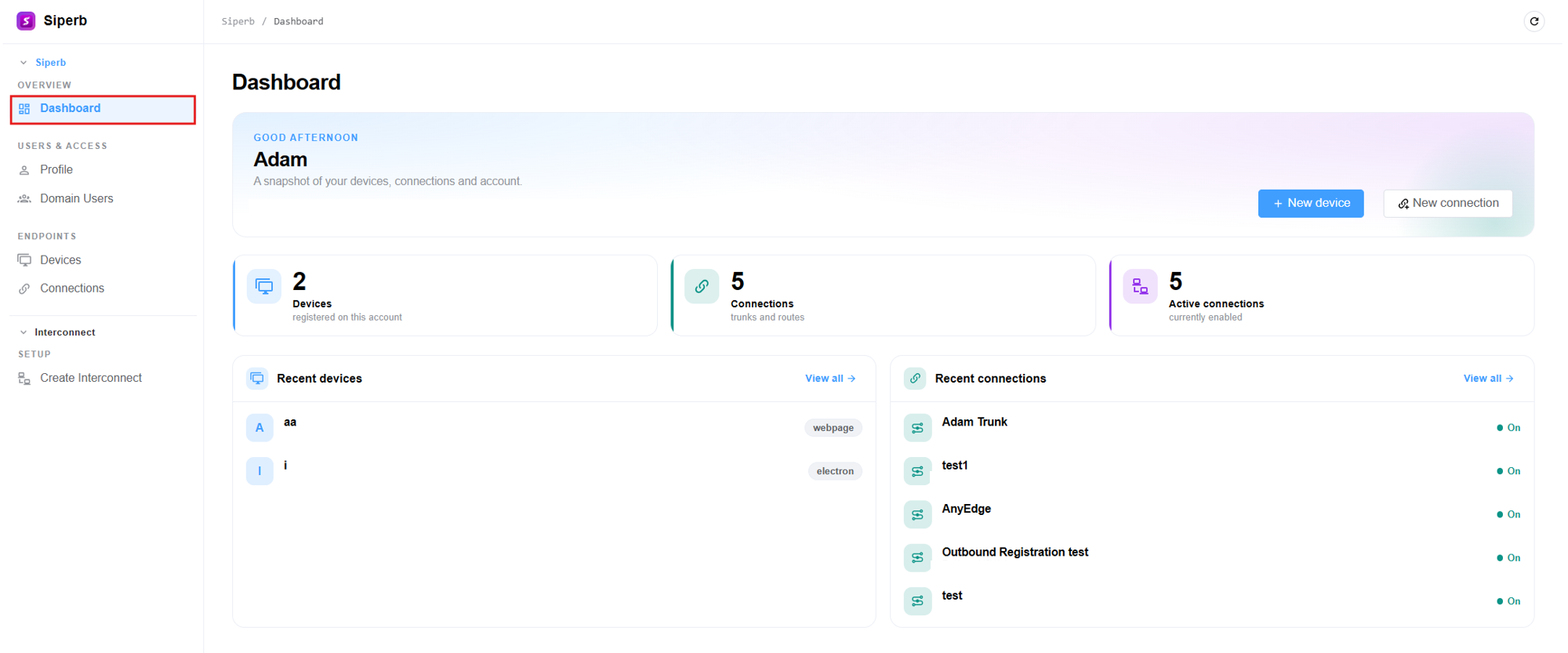
Siperb Profile
It displays the user's account information, SIP identity, account details, permissions, and domain information. Users can review their profile and, where permitted, update their details.
- The
Detailstab displays the user's account information, SIP identity, permissions, and domain details. - The
vCardtab displays the user's contact information.
Domain Users
This page allows administrators to manage users who can access the Siperb domain. Administrators can view existing users, check their roles, and invite new users. 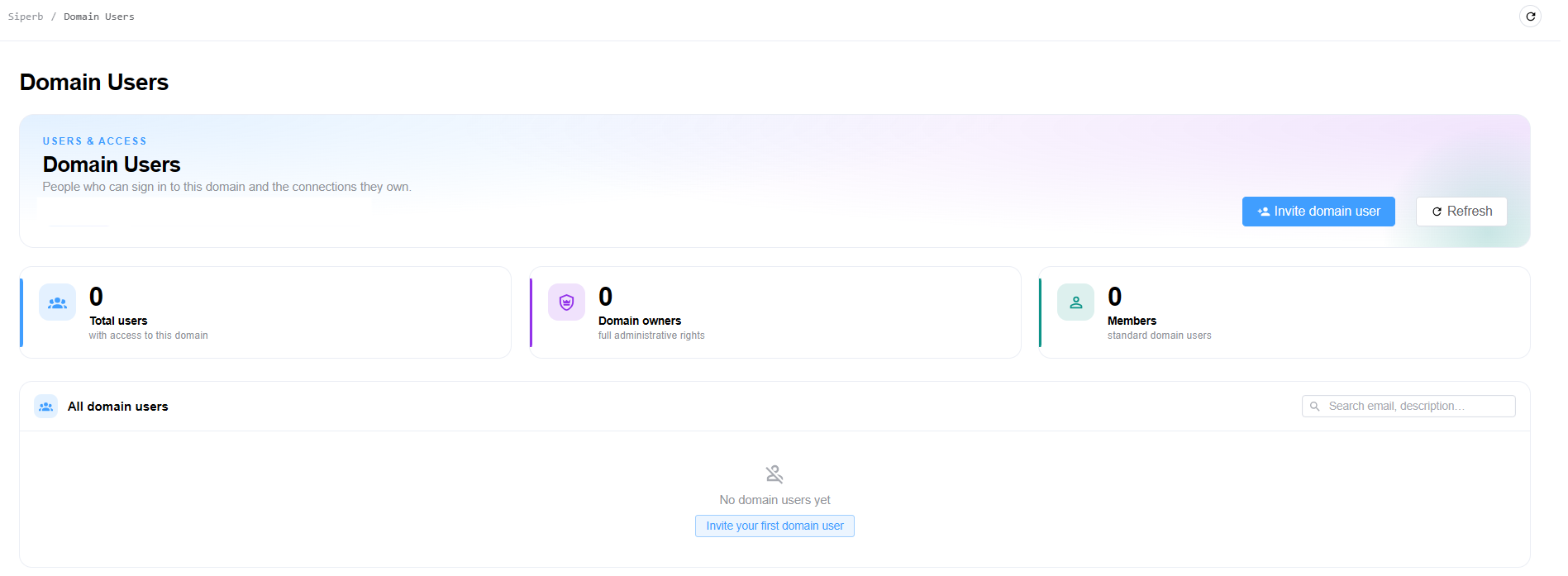
-
How to Invite a Domain User?
- Navigate to Siperb Domain Users.
- Click
Invite domain user. The invitation window opens.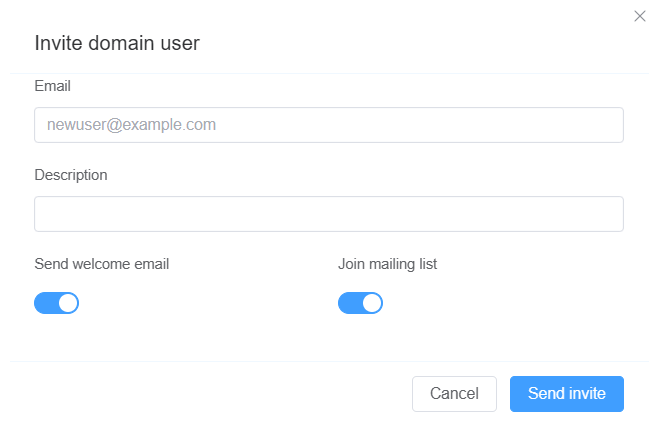
- Enter the following details: Email, Description, Send welcome email, Join mailing list.
- Click
Send inviteto send the invitation. ClickCancelto close the window without sending it.
Devices
This page allows users to create and manage devices registered with their Siperb account. Users can view device details, access diagnostic logs, and edit or delete devices. 
-
How to Create a Device?
- Navigate to Siperb Devices.
- Click
New device. The New device window opens.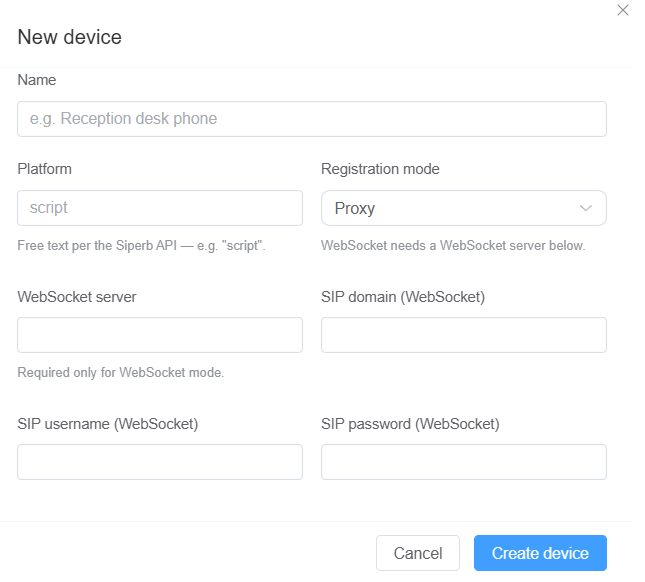
-
Enter the following details:
- Name: Enter a descriptive name for the device, such as
Reception desk phone. - Platform: Enter the platform identifier expected by the Siperb API, such as
script. - Registration mode: Select the required registration mode. The screenshot shows
Proxy. - WebSocket server: Enter the WebSocket server address when using WebSocket mode. This field is required only for WebSocket mode.
- SIP domain (WebSocket): Enter the SIP domain used for the WebSocket connection.
- SIP username (WebSocket): Enter the SIP username for authentication.
- SIP password (WebSocket): Enter the corresponding SIP password.
- Name: Enter a descriptive name for the device, such as
-
Click
Create deviceto register the device. ClickCancelto close the window without creating it.
What happens when you click on proxy?
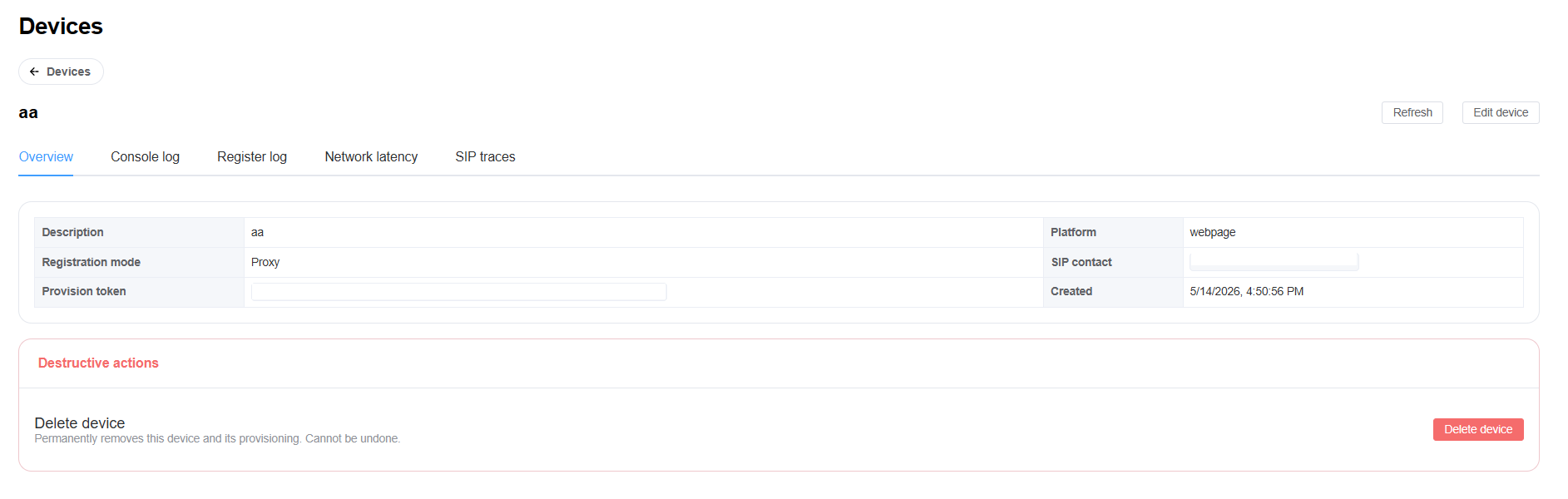
- Overview: Displays the device description, platform, registration mode, SIP contact, provisioning token, and creation date.
- Console log: Provides access to console logs for troubleshooting.
- Register log: Displays registration-related logs.
- Network latency: Provides network latency information for diagnosing connectivity or performance issues.
- SIP traces: Provides SIP signaling information for call and registration troubleshooting.
Click Edit device to modify the device configuration or Refresh to reload its details.
The Destructive actions section contains the Delete device option. Deleting a device permanently removes the device and its provisioning, and the action cannot be undone.
Connections
This page allows users to create and manage SIP connections in Siperb. Connections define how calls are routed to external trunks or registration-based endpoints using dial patterns and connection settings.
-
How to Create a New Connection?
-
Navigate to Siperb Connections and click
New connection.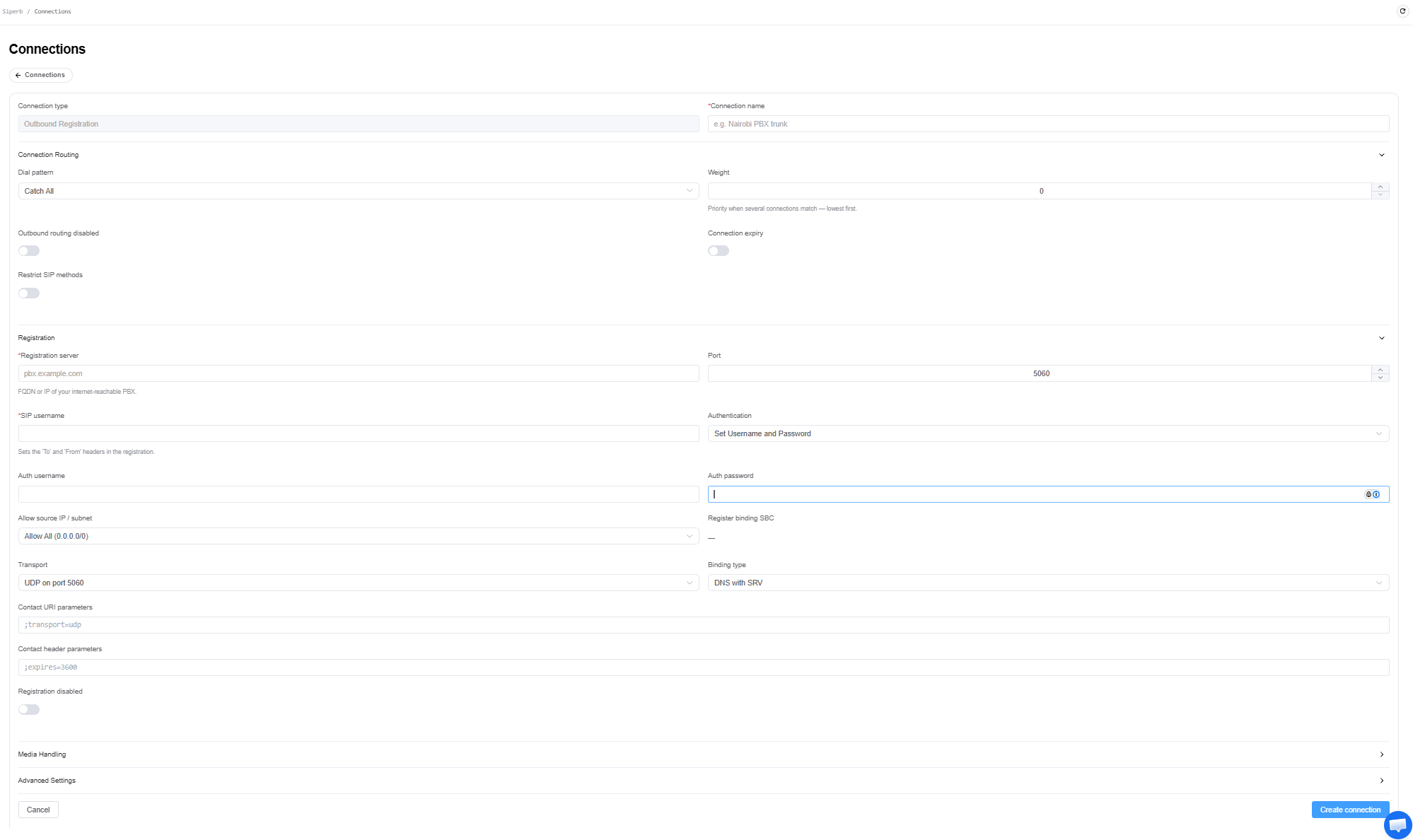
-
Configure the connection details.
Connection Details
- Connection type: Select the type of connection, such as
Outbound Registrationor an outbound trunk type. - Connection name: Enter a descriptive name to identify the connection.
Connection Routing
- Dial pattern: Select the dial pattern that determines which numbers the connection handles.
Catch Allis shown as an available option. - Weight: Set the connection priority. Lower values are prioritized when multiple connections match.
- Outbound routing disabled: Enable this option to disable outbound routing through the connection.
- Connection expiry: Configure whether the connection should expire, where applicable.
- Restrict SIP methods: Enable this option if SIP method restrictions are required.
Registration: This section contains settings for connections that use SIP registration.
- Registration server: Enter the hostname or IP address of the remote PBX or registration server.
- Port: Specify the SIP port. The screenshot shows
5060. - SIP username: Enter the SIP username used for registration.
- Authentication: Select the required authentication method. The screenshot shows
Set Username and Password. - Auth username: Enter the authentication username, if required.
- Auth password: Enter the authentication password.
- Allow source IP / subnet: Specify which source IP addresses or subnets are allowed.
- Transport: Select the SIP transport protocol, such as UDP.
- Binding type: Select the required binding method. The screenshot shows
DNS with SRV. - Contact URI parameters: Configure additional parameters for the SIP Contact URI.
- Contact header parameters: Configure additional SIP Contact header parameters.
- Register binding SBC: Displays the associated SBC binding information, where applicable.
- Registration disabled: Enable this option to disable registration.
Media Handling and Advanced Settings: Expand these sections to configure additional options required for the connection. The available settings depend on the connection type and deployment requirements.
Review the configuration and click
Create connectionto save the connection. ClickCancelto leave without creating it. -
Create Interconnect
This page allows administrators to create an outbound registration connection for a selected domain user. It configures the SIP registration server, authentication credentials, media handling, and advanced settings required for the connection. 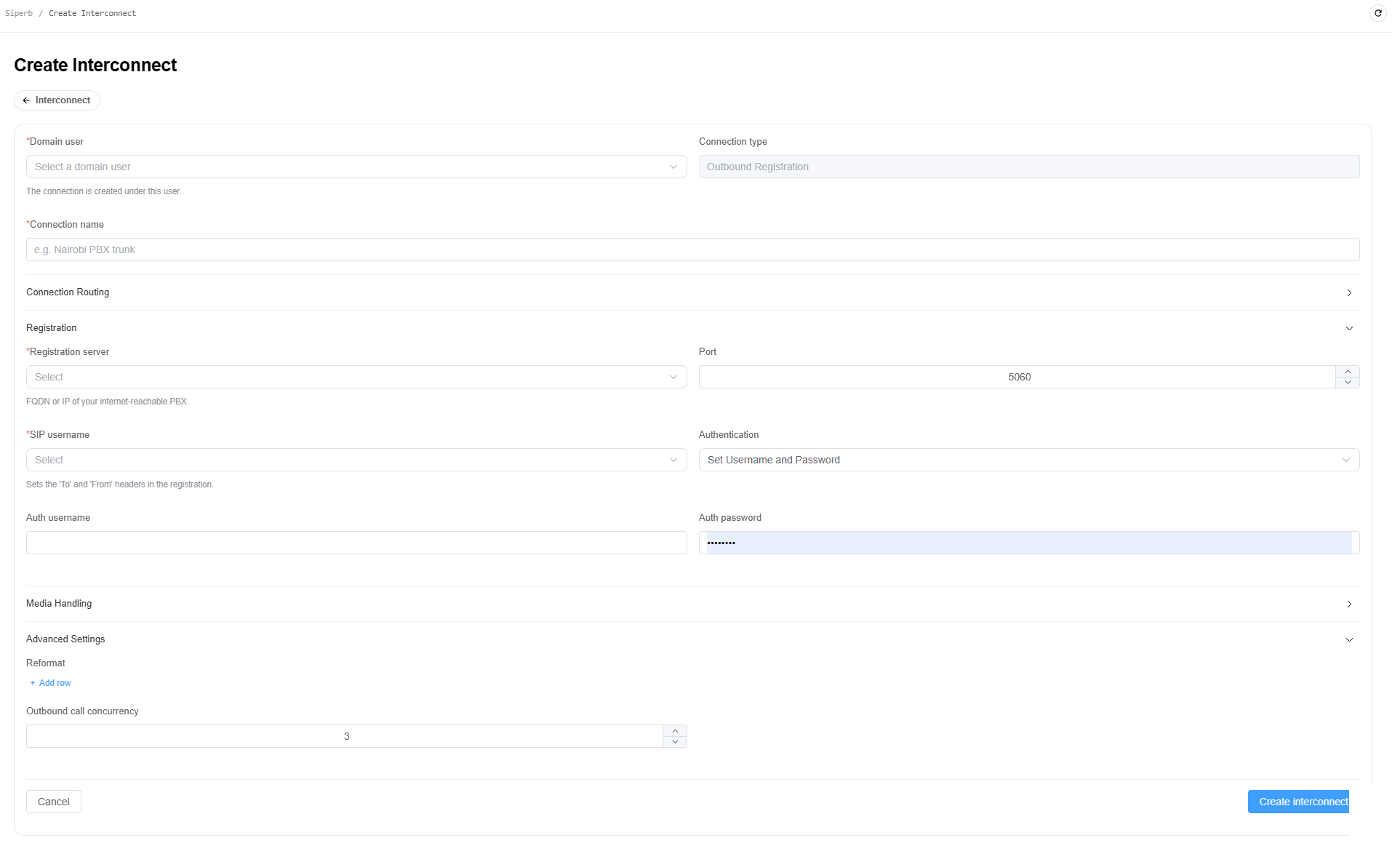
-
Configuration Fields
- Domain user: Select the domain user under whose account the connection will be created.
- Connection type: Displays the connection type. The screenshot shows
Outbound Registration. - Connection name: Enter a descriptive name for the connection, such as
Nairobi PBX trunk.
-
Connection Routing: Expand the Connection Routing section to configure the routing rules for the connection, including the dial pattern and related routing options.
-
Registration: Configure the SIP registration details required to connect to the remote PBX.
- Registration server: Select the configured registration server or the internet-reachable PBX.
- Port: Specify the SIP registration port. The default shown is
5060. - SIP username: Select the SIP username used for registration. This sets the
ToandFromheaders in the registration. - Authentication: Select the authentication method. The screenshot shows
Set Username and Password. - Auth username: Enter the authentication username, if required.
- Auth password: Enter the corresponding authentication password.
-
Media Handling: Expand Media Handling to configure media-related options for the interconnect, according to the requirements of the SIP connection.
-
Advanced Settings provides additional configuration options.
- Reformat: Add a row to define number-reformatting rules, where required.
- Outbound call concurrency: Specify the maximum number of concurrent outbound calls permitted for the connection. The screenshot shows
3.
-
Create the Interconnect
- Select the required Domain user.
- Enter a Connection name.
- Configure the routing and registration details.
- Review the Media Handling and Advanced Settings sections.
- Click
Create interconnectto create the connection. ClickCancelto exit without creating it.
-
Navigate to Setup > App Store > Anvil Store > Marketplace, locate Siperb, and click
Install. -
An installation confirmation window will appear. Review the package details and click
Installagain. -
Once installed, open Siperb from the installed applications list. The application details page displays the installation status, installed version, latest version, and package information.
-
To review the installed version and its changelog, navigate to the
Versionstab. This section displays the version information, approval status, submission details, and changes included in the release. -
To configure a custom domain, navigate to the
App Settingstab. Under Custom Domains, click+ Add.<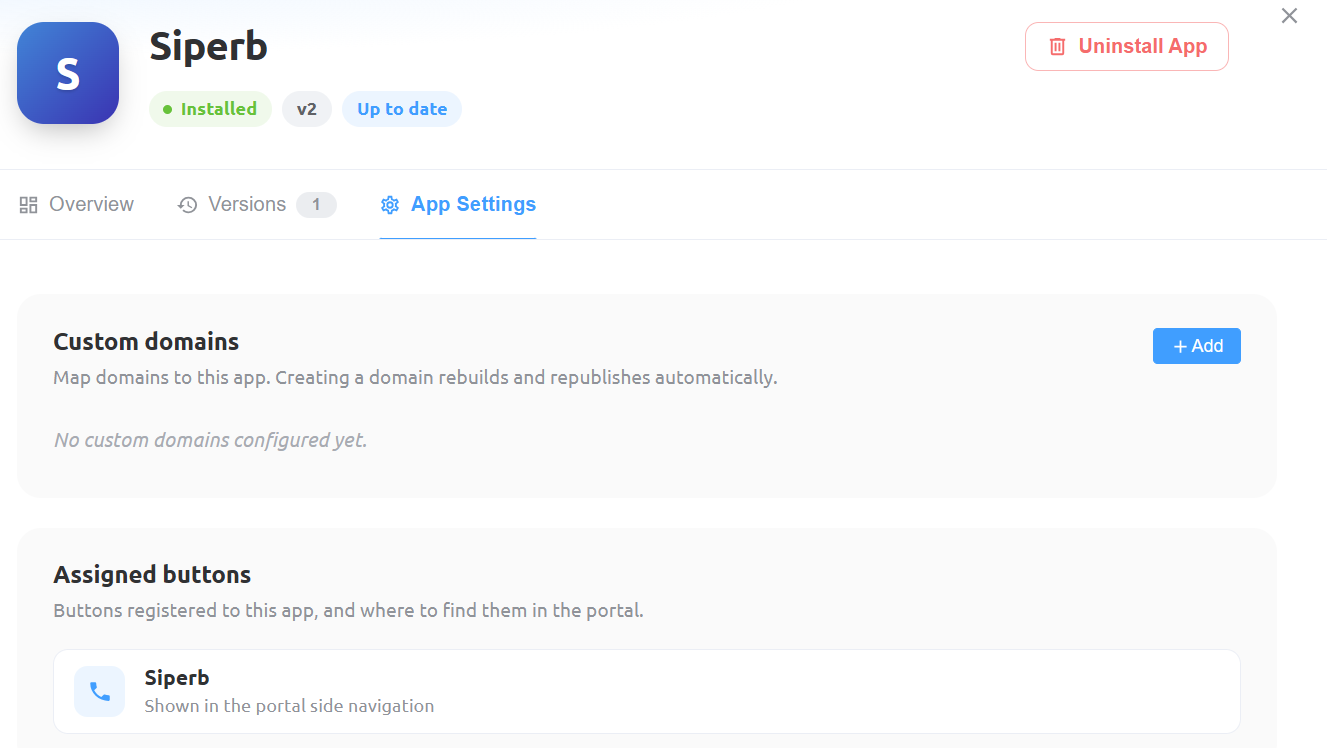 >
> -
A window will open, prompting you to enter the following details:
-
Domain: Enter the domain you want to associate with the Siperb application (for example,test.cnx.page). -
Click
Createto save the domain configuration. The application will be automatically rebuilt and republished after the domain is created.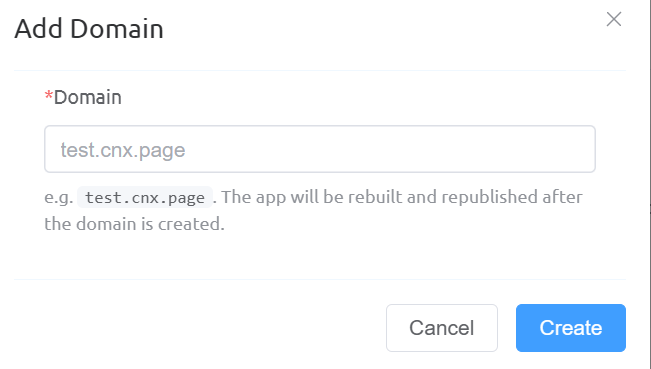
-
To access Siperb, log in to the ConnexCS portal and click
Siperbin the left-hand navigation menu. This opens the Siperb application integrated with your ConnexCS account.